HUBS_
-
Hubi is an AI-powered kit builder designed to turn rough client kit lists and dry hire requests into real, usable items inside Current RMS, intelligently matching what you paste in against your actual stock list so you can build jobs faster without guesswork.
It’s ideal when clients send vague requests, emails or when you need to quickly convert a simple brief into a structured kit list inside an Opportunity.
How it works:
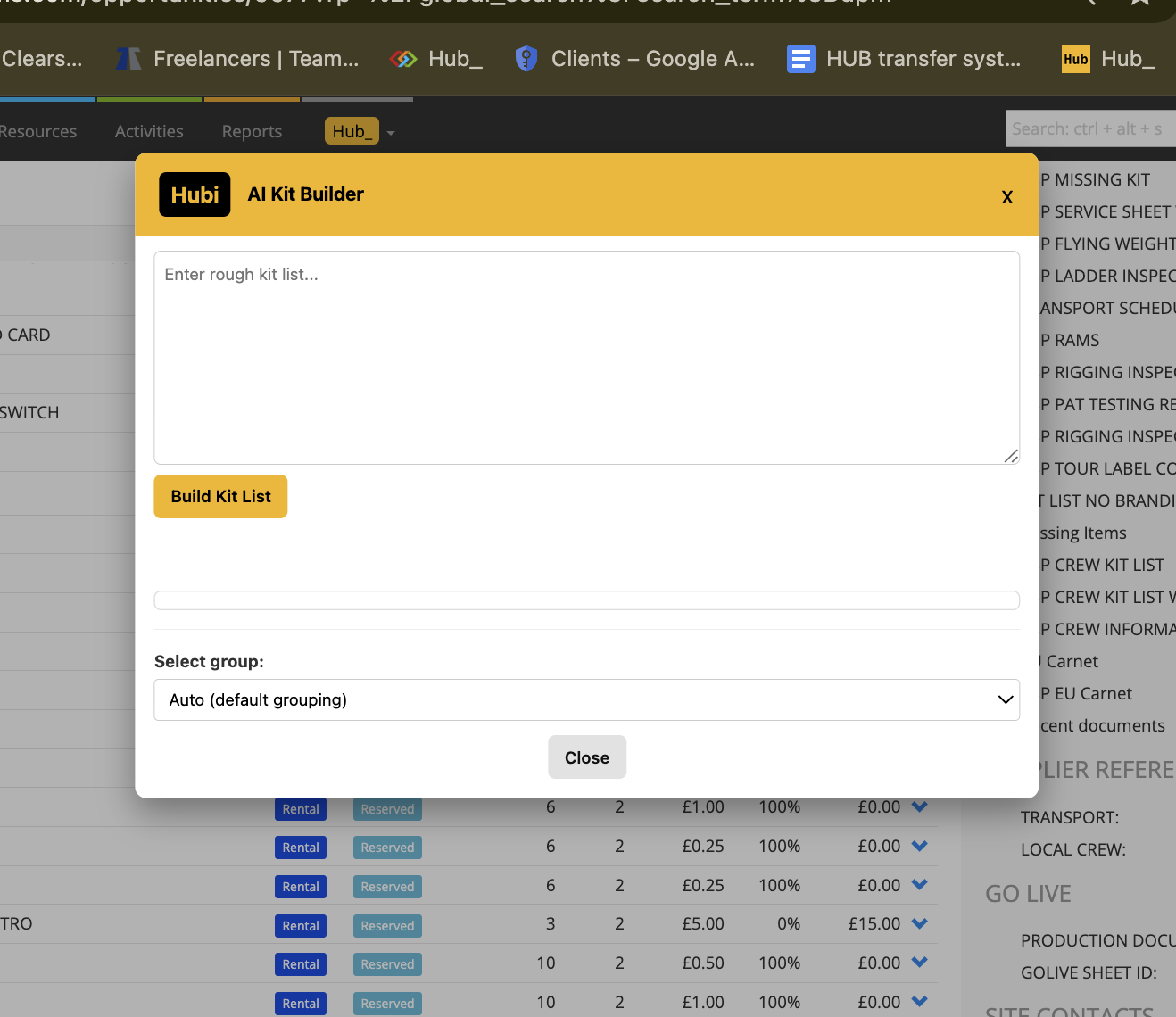
Hubi lets you paste in a rough kit list written in plain language.
It uses AI to analyse each line and match it strictly against your Current RMS inventory — preferring exact matches and only suggesting near matches when needed.
If a requested item doesn’t exist in your stock, Hubi flags it clearly instead of guessing.
Quantities are detected automatically, defaulting to 1 if none are provided.
For cables, Hubi intelligently selects the nearest available length from your inventory.
Matched items are shown in a review list, where you can adjust quantities, choose alternates, or deselect anything before inserting.
Unmatched items are listed separately so you can decide how to handle them.
To use it:
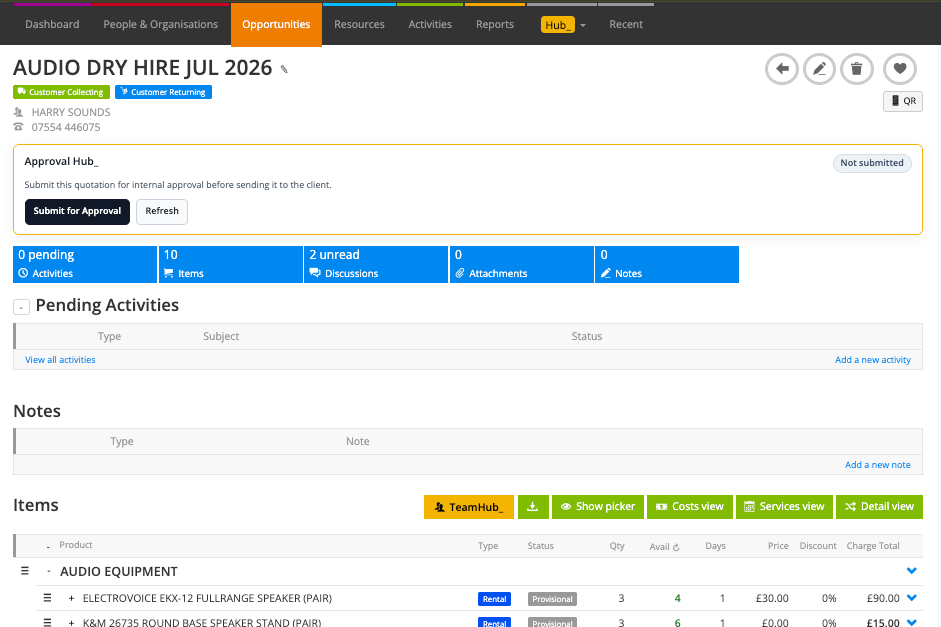
Open an Opportunity in Current RMS.
Click Hubi from the Actions section.
Paste in your rough kit list (for example, from a client email or dry hire request).
Click Build Kit List and review the matched items.
(Optional) Choose an existing group or create a new one for the items.
Select the items you want to add.
Click Insert into Current RMS.
Hubi will add the items directly to the Opportunity.
💡 Why it’s useful:
Hubi saves time when building jobs from incomplete or unstructured kit lists. It removes manual searching, reduces mistakes, and ensures you’re always working with real items from your own stock. You stay in control at every step, nothing is added unless you approve it.
Hubi Setup (Settings)
Before using Hubi, you’ll need to enable it and connect it to your stock list.
How to set it up:
Open Hub Settings.
Enable Hubi (AI Kit Builder).
Add your OpenAI API key in the Hubi OpenAI Key field.
If you don’t already have an API key, you can create an OpenAI account and generate one at https://platform.openai.com/api-keys.
Click Fetch Hubi Stock List to load your Current RMS inventory into Hubi.
This builds the exact product list Hubi will use for matching items.
(Optional) Click Edit Hubi Prompt if you want to fine-tune how Hubi interprets kit lists and matching rules.
Save your settings.
Once set up, Hubi is ready to use on Opportunity pages.
-
Refresh Accessories Hub is designed to safely fix missing default and mandatory accessories on a job. It scans your Opportunity, shows you exactly what’s missing, and lets you put accessories back without losing prices, discounts, notes, chargeable days, or item order.
It’s ideal for cleaning up jobs where accessories have been removed, edited, or broken over time , while keeping full control over what gets restored.
How it works:
Refresh Accessories Hub scans the Opportunity and checks each item against its default and mandatory accessories, including nested defaults.
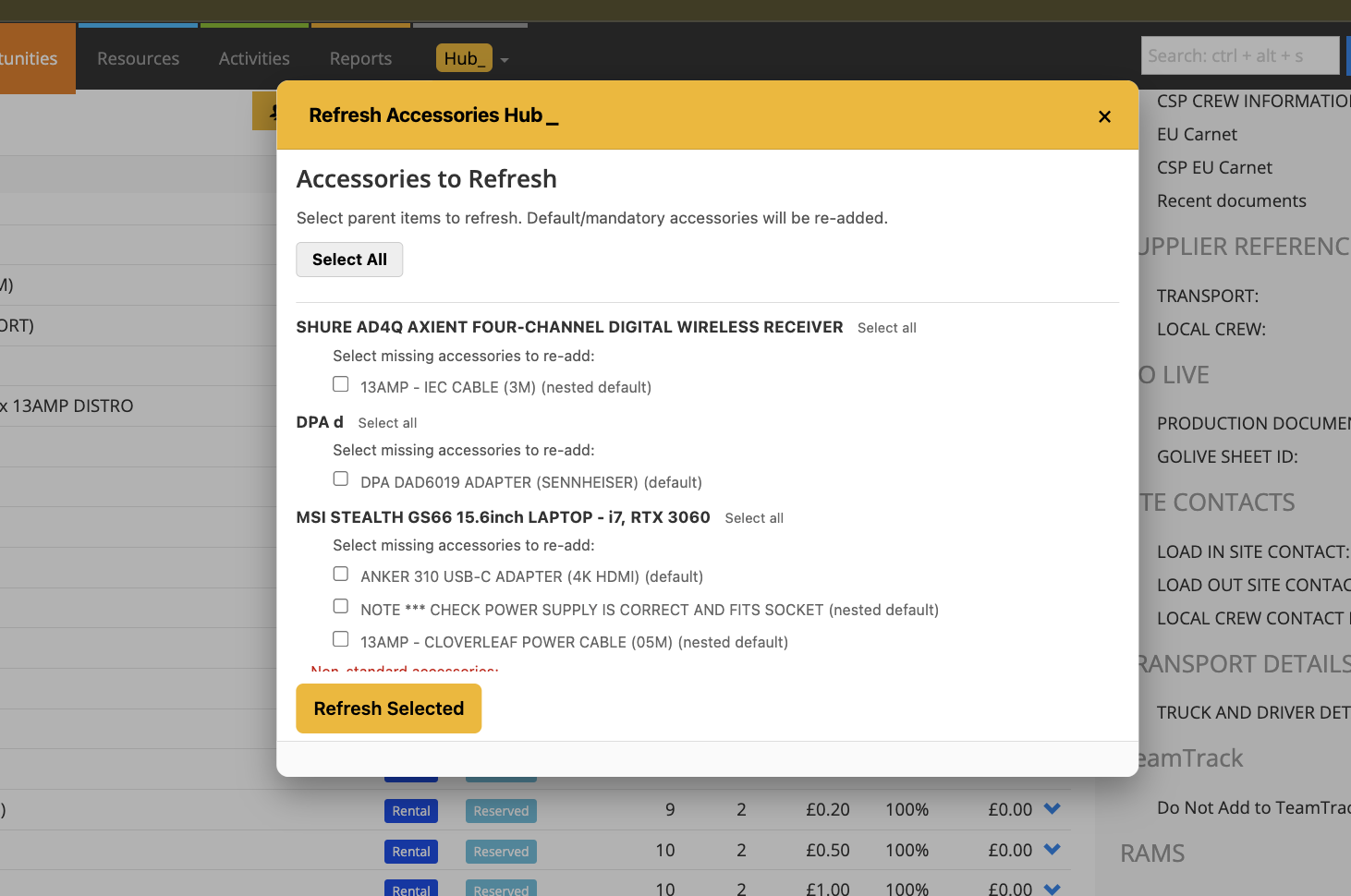
It shows you exactly which accessories are missing for each item.
Non-standard (manually added) accessories are listed separately, so you can choose whether to keep them.
Any items or accessory chains marked as Sub-Hire are skipped for safety and clearly listed as ignored.
When you refresh, the hub rebuilds the parent item so accessories return correctly, then restores all original pricing, discounts, descriptions, chargeable days, and ordering.
To use it:
Open the Opportunity.
Look under the Actions section and click Refresh Accessories Hub.
Wait a moment while the Opportunity is scanned.
A pop-up will list items with missing accessories.
Tick only the accessories you want to re-add.
(Optional) Leave Keep non-standard accessories checked to retain your custom extras.
Click Refresh Selected.
When the process completes, click Complete.
💡 Why it’s useful:
Refresh Accessories Hub fixes missing default accessories safely. You stay in control ,nothing is re-added unless you choose it. Prices, discounts, descriptions, chargeable days, and ordering are preserved. Items return with accessories correctly grouped and in the right place.
-
Refresh Services Hub is designed to quickly realign service items on an Opportunity with the correct schedule, chargeable days, pricing, and costs without manually editing each service line one by one.
It pulls timings directly from the Opportunity schedule and lets you apply them consistently across selected services, saving a huge amount of time after date or schedule changes.
How it works
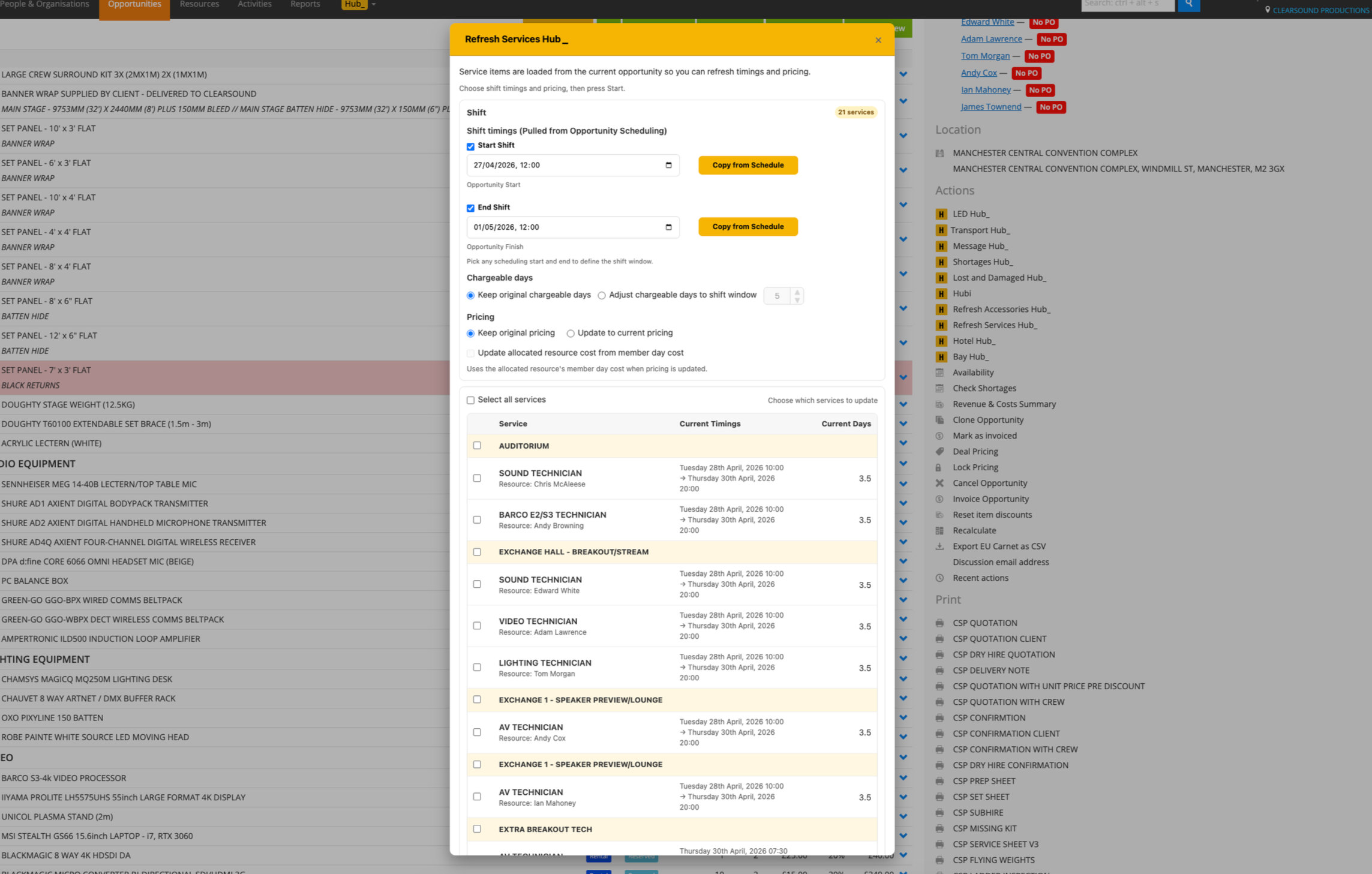
Refresh Services Hub scans the current Opportunity and loads all Service items.
It pulls available schedule points from the Opportunity, including:
Opportunity start / end
Prep
Load
Delivery
Setup
Show
Takedown
Collection
Unload
De-Prep
You choose which schedule points define the start and end of the service shift.
For each selected service, the hub can:
Update start and end times
Recalculate chargeable days based on the selected shift window
Keep existing pricing or update pricing from the service catalogue
Optionally update cost prices, including member day costs for allocated resources
All updates are applied safely via the API and (where required) background form submissions.
What it updates
Depending on your choices, Refresh Services Hub can update:
Start & end times
Based on Opportunity scheduling or manual override
Chargeable days
Automatically calculated from the selected shift window, or manually set
Sell price
Pulled from the service catalogue based on the service rate type
(day / hour / distance / flat)
Discounts
Existing discounts are preserved unless pricing is refreshed
Cost prices
From the service catalogue or
From the allocated resource’s member day cost (optional)
How to use it
Open an Opportunity.
In the Actions panel, click Refresh Services Hub_.
Wait while the hub scans service items.
Choose your Start Shift and End Shift sources:
Use Opportunity schedule points
Or manually override the date/time
(Optional) Enable Adjust chargeable days to auto-calculate days.
Choose your pricing option:
Keep original pricing
Update to current pricing
(Optional) Enable Update allocated resource cost from member day cost.
Select the services (or service groups) you want to update.
Click Start.
Watch progress and logs update in real time.
💡 Why it’s useful:
Refresh Services Hub saves time when service dates, timings, or schedules change. It removes the need to manually edit each service line, reduces missed chargeable days and pricing errors, and keeps services aligned with the Opportunity schedule. You stay in control at every step only the services you select are updated, and nothing changes unless you start it.
-
Transport Hub_ helps you plan, track, and share vehicle schedules directly inside Current RMS — complete with delivery, collection, and contact details. It keeps your logistics in sync across the team and automatically updates the related Transport item.
How it works:
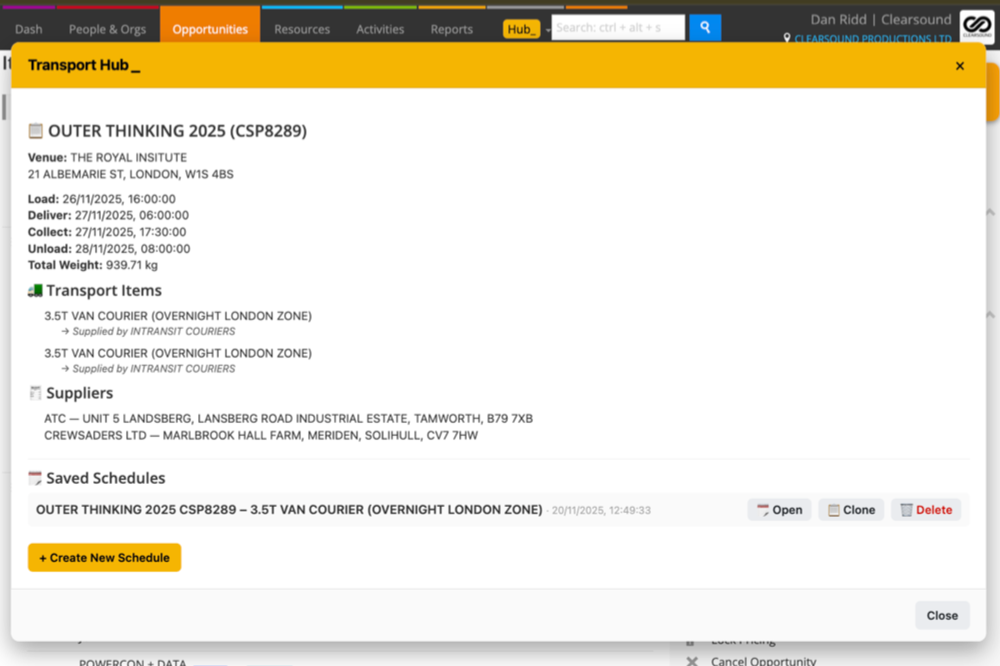
Transport Hub_ lets you build a clear schedule for each job — showing Load and Unload points, dates, times, addresses, and onsite contacts.
You can assign a vehicle, supplier, and driver, and save everything directly into the Opportunity’s transport_hub custom field.
When you click Save, the full formatted schedule is automatically stored to the related Transport item’s transport_schedule custom field.
The system can detect whether the transport is handled internally or sub-hired, and adjusts automatically, assigning the correct supplier or vehicle reference.
If you edit the schedule later, re-saving instantly updates the same fields, ensuring everyone works from the latest logistics plan.
To use it:
Open any Opportunity that includes a Transport item.
Click Transport Hub_ from the Hub menu or under Actions, this opens the main Transport Hub screen.
Click + Create New Schedule to open the Schedule Builder.
Select your vehicle, supplier, and driver.
Add or adjust Load and Unload points (these default to Store → Venue → Venue → Store).
Enter dates, times, and site contact details for each point.
Click Save Schedule, your schedule is stored automatically to both the Opportunity and the related Transport item, ready for reports, documents, and emails.
💡 Why it’s useful:
Transport Hub_ keeps your logistics and equipment teams in sync — no more hunting through emails or spreadsheets. Everyone can see exactly where and when each vehicle is moving, who’s driving, and what’s being delivered — all saved automatically inside the Opportunity.
For more details check this video out
-
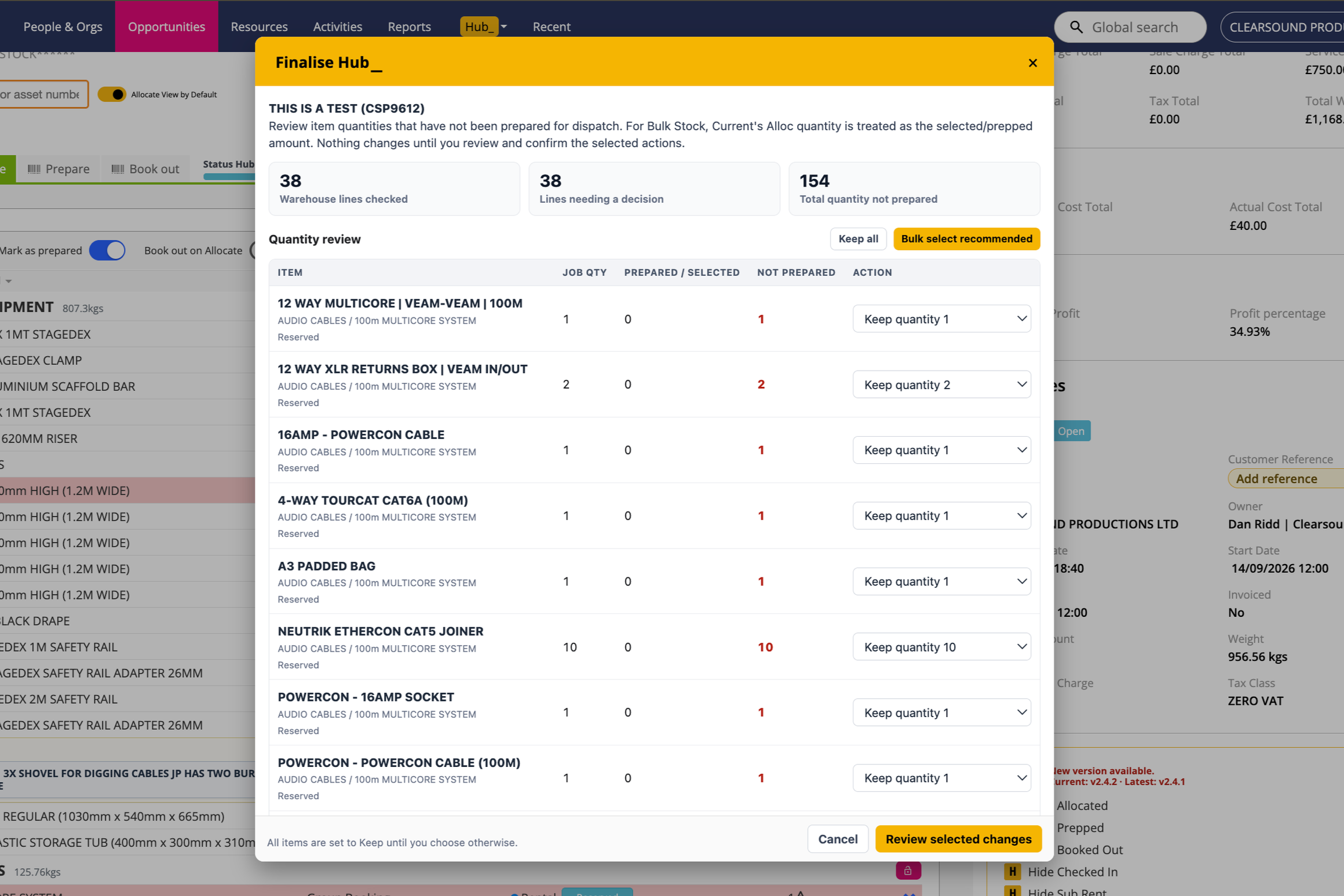
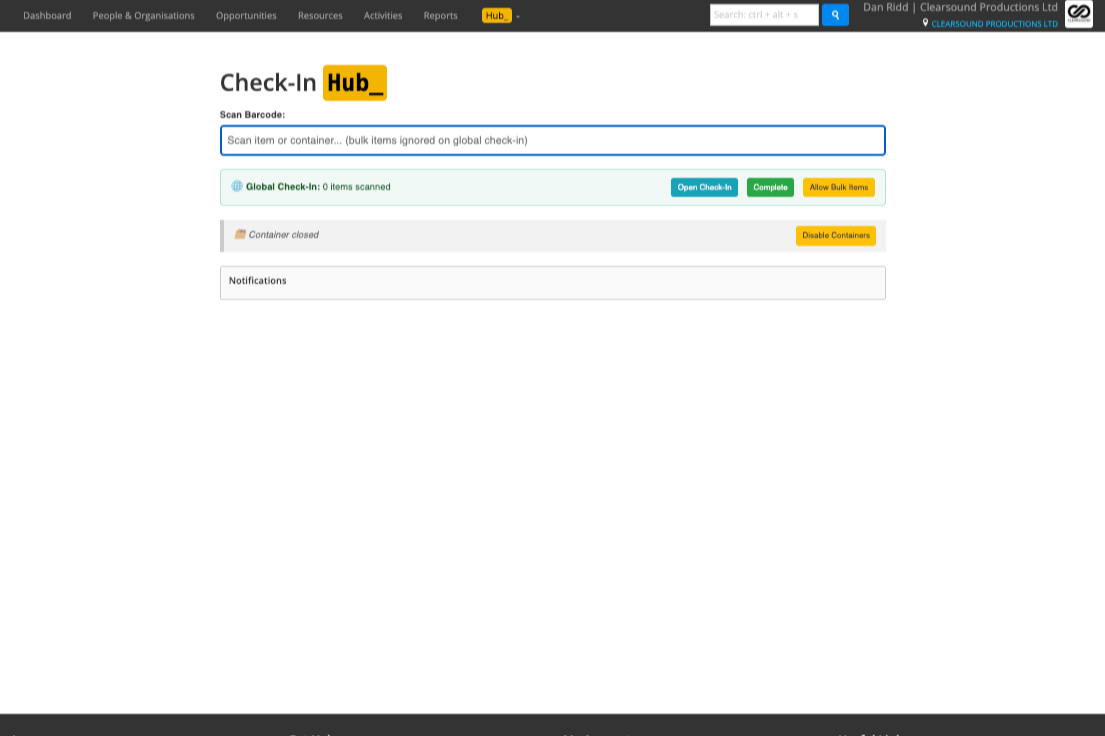
Check-In Hub makes warehouse returns faster and more accurate by letting you scan individual items and scan flightcase barcodes to open their contents — everything is globally checked in as you go. You’ll hear a beep and see instant feedback so you know what’s correct, missing, extra, or flagged.
How it works:
When you scan a flightcase barcode, the system “opens” that case in a temporary container view, showing you exactly what should be inside.
Scan each individual item inside — each one is globally checked in immediately.
If you scan an item that’s not expected in the container, the system will notify you so you can sort it out on the spot.
Scan the same flightcase barcode again to “close” the case and clear the container view.
Any loose items you scan outside a flightcase are globally checked in too — bulk barcodes are ignored automatically.
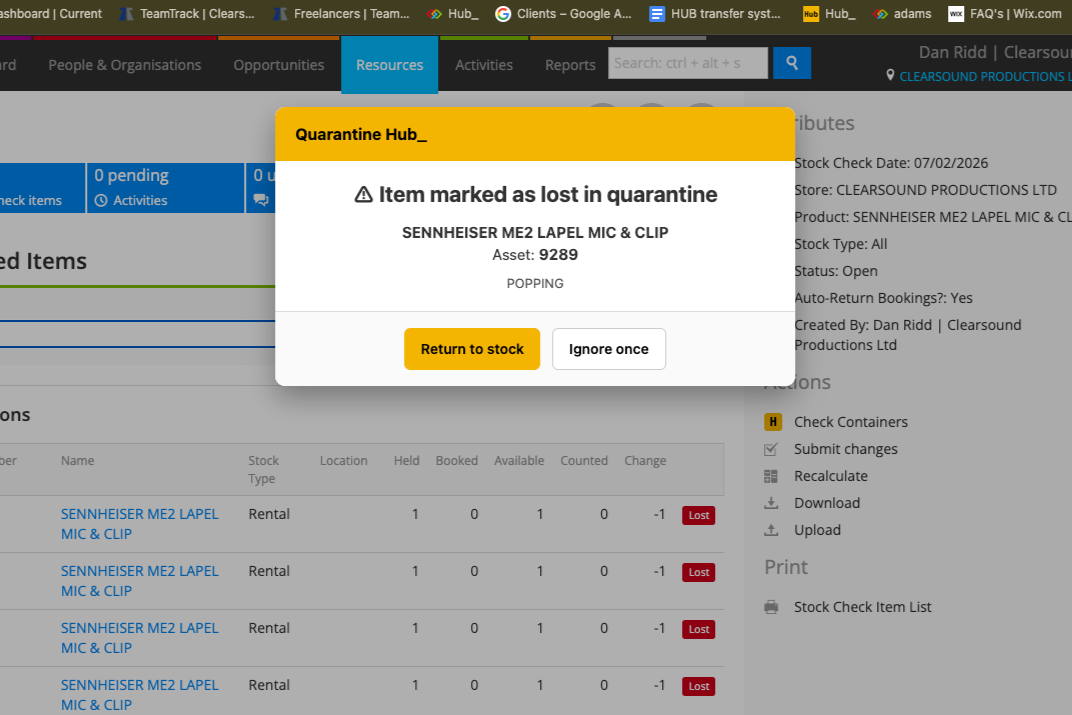
If any item is in quarantine, it will be flagged during check-in so you don’t miss it.
When you’re done, use the Complete button in Check-In Hub to finish the global batch and clear the list.
If you just want to run Global Check-In and skip containers, click “Disable Containers” to keep it simple.
To use it:
Add all your flightcase barcodes in Settings so they’re recognised when scanned.
Click Check-In Hub in the Hub Menu.
Scan a flightcase barcode — the case “opens” and shows its expected contents.
Scan each item inside — they’re globally checked in and marked off. You’ll be alerted if anything unexpected turns up.
Scan the flightcase barcode again to “close” the case and clear that view.
Any loose items you scan are globally checked in too — bulk barcodes are ignored.
Use the Complete button to finish the batch and clear your global check in list.
Click “Disable Containers” if you just want to do Global Check-In only.
💡 Why it’s useful:
Check-In Hub keeps your returns smooth, fast, and accurate — so you never miss an item, and anything extra or in quarantine is caught before it hits the shelf.tion text goes here
-
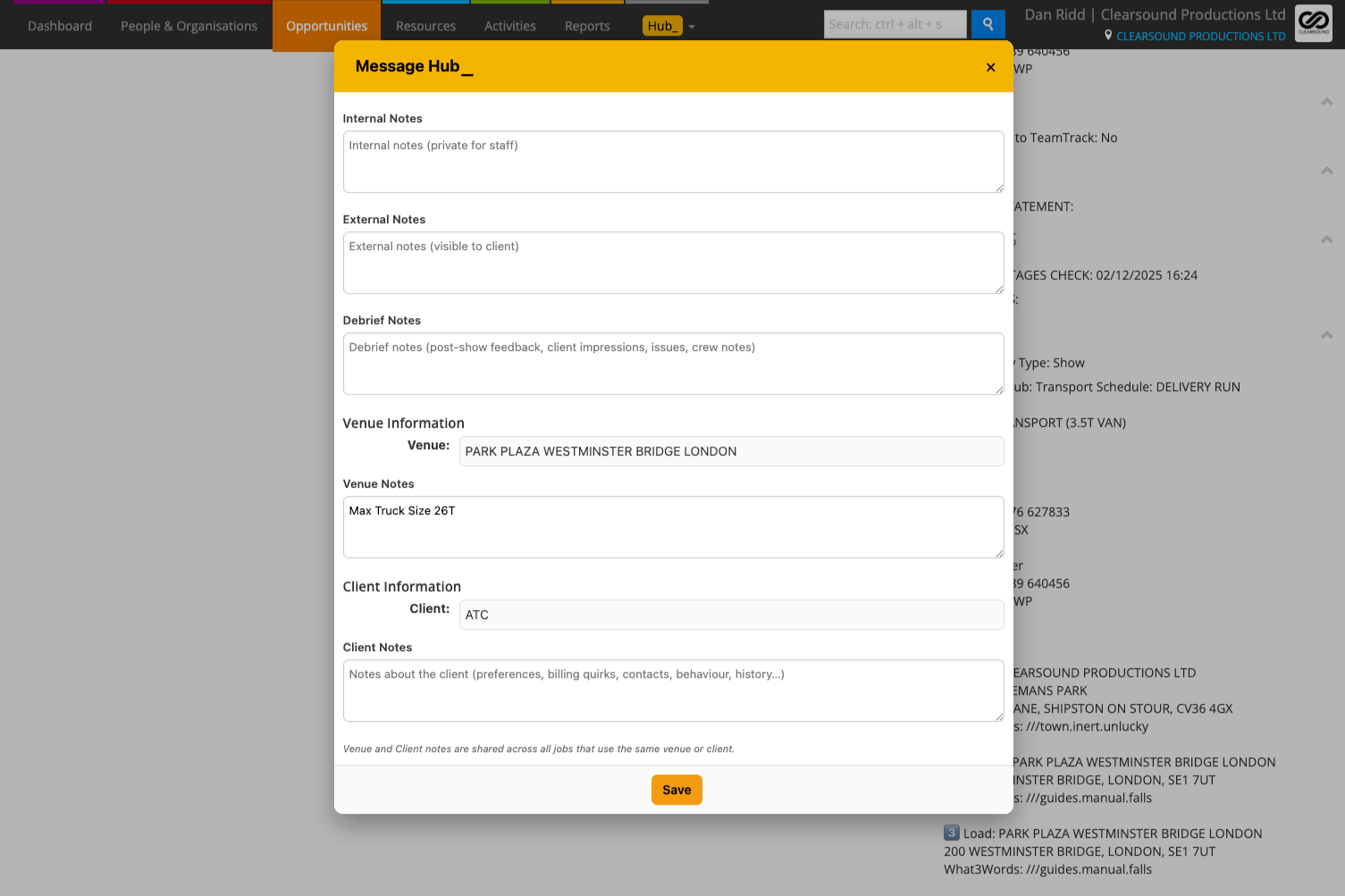
Message Hub pops up automatically when an Opportunity has a description — or you can open it manually under Actions. It displays the job’s Internal and External descriptions in a clear popup and plays a soft sound when it appears, so you don’t miss it.
How it works:
Internal Notes are for your team only — use them for instructions, updates, or reminders that won’t be seen by the client.
External Notes are for updates you want to share with the client, like quick delivery details or changes they need to know about.
If the linked organisation is On Stop or a Cash Customer, Message Hub will show a clear on-screen warning when the Opportunity loads.
If you don’t want Message Hub to pop up automatically when you land on an Opportunity, go to Hub Settings and tick Disable Popup on Landing.
To use it:
Open Message Hub (it pops up automatically or you can open it under Actions).
Choose Internal or External.
Type your message and click Save — your note will be added directly to the Opportunity record.
💡 Why it’s useful:
Message Hub makes sure no one misses key details — perfect for quick reminders and for flagging important account statuses like On Stop or Cash Customer to keep your team and clients on the same page.
For more details check this video out
-
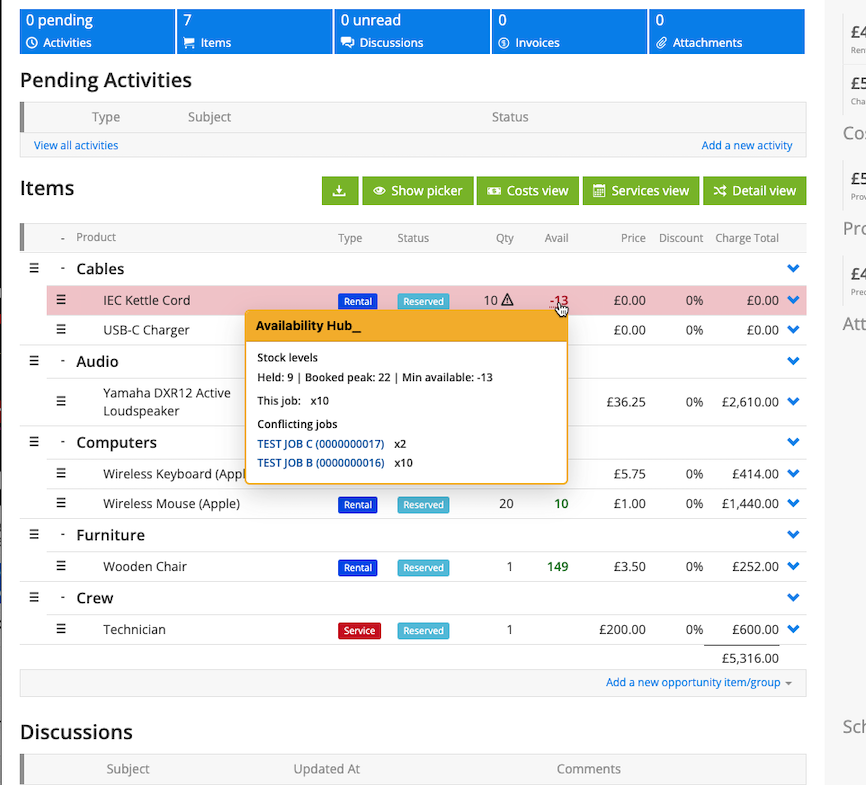
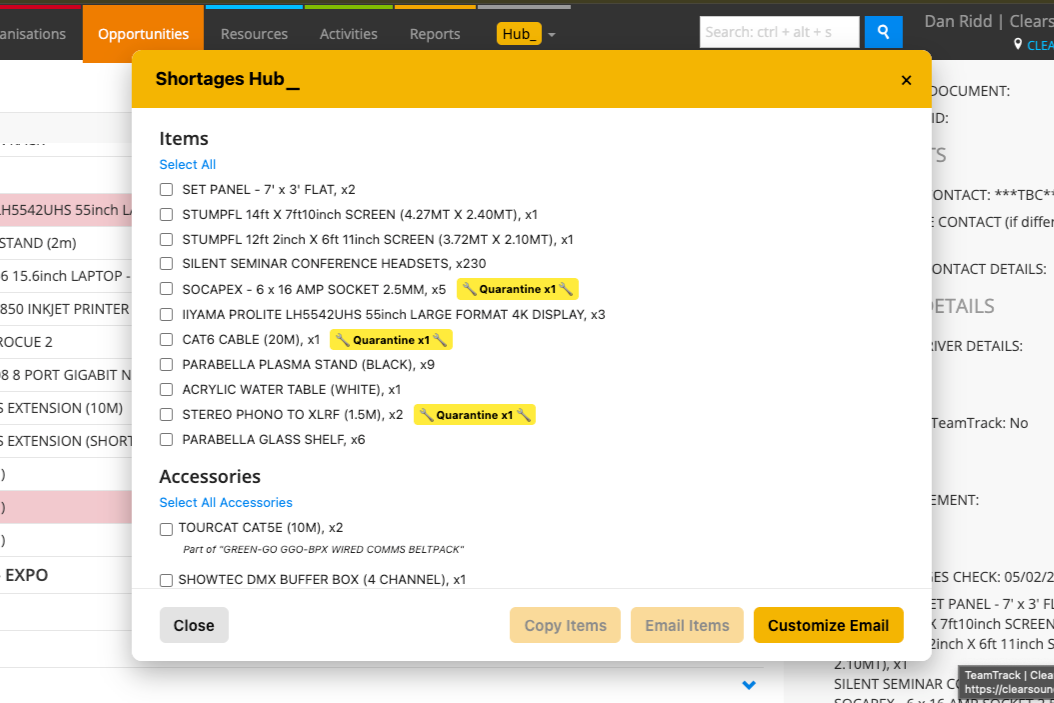
Shortages Hub is designed to give you a clear list of any item shortages on a job, so you can check what’s short and organise extra kit with suppliers. It will also show any items that are short because they’re in quarantine, so you don’t miss anything that’s unavailable.
How it works:Shortages Hub checks your Opportunity’s kit list and shows exactly what’s in short supply.
It includes any items affected by quarantine, so you see the real availability.
You can select items and copy the list or create an email request for suppliers — with sensible collection and return dates automatically applied.
To use it:
Make sure your Availability Period is set to Hour.
Open the Opportunity.
Look under the Actions section and click Shortages Hub.
Wait a moment while it checks your availability.
A pop-up will show any shortages — including items in quarantine.
Select the items you want to copy or email, then choose to copy the list or create an email request directly.
When you create an email, Shortages Hubautomatically sets sensible collection and return dates for you:
The collection date is normally set for the day before your job’s delivery — but weekends are excluded. So if your delivery is on a Saturday, Sunday, or first thing Monday, the collection date automatically moves back to Friday.
The return date is normally set for the same day your kit is collected back in — unless it’s late afternoon, in which case it’s set for the next day. If it comes back late Friday, Saturday, or Sunday, the return date moves forward to Monday.
💡 Why it’s useful:
Shortages Hub saves you time — you can deal with shortages quickly, automatically build supplier requests with the right dates, and keep your job on track.
-
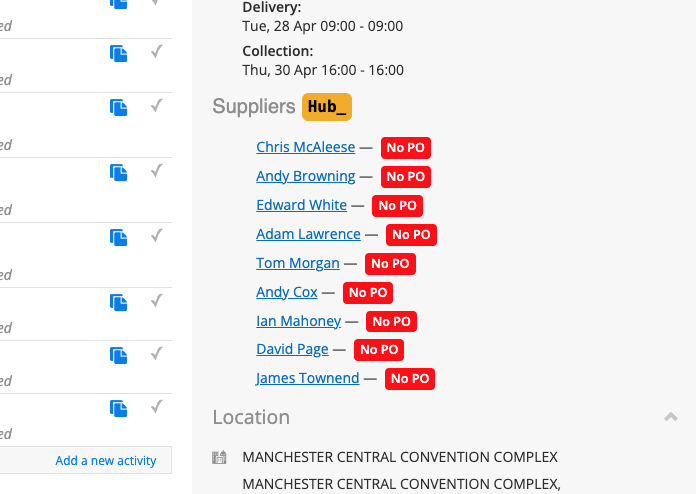
Suppliers Hub shows all suppliers linked to your Current RMS Opportunity in a single list on the right-hand side, giving you a clear visual overview at a glance. Each supplier is colour-coded so you can instantly see their PO status:
🔴 Red = No PO yet
🟠 Orange = PO created but not sent
🟢 Green = PO sent
What’s New — Detailed Supplier Popup
You can now click any supplier name to open a detailed popup showing all items assigned to that supplier, including:
Each item and accessory
Quantities
PO status
Direct links to open the PO
You can also copy the list or email it straight to the supplier, complete with delivery/collection dates and formatted shortages-style layout.
How it works
Automatically lists every supplier linked to your Opportunity — no setup needed.
Click any supplier name to view a full breakdown of items and PO status.
Click a “No PO” label to jump straight to Costings with that supplier’s items pre-selected.
When you send a PO via Discussions, Hub detects it and asks if you’d like to mark it as sent.
Right-click any PO to mark as sent manually.
If you’ve enabled Manual PO Numbers, type your own PO and track its status the same way.
To use it
Open any Opportunity in Current RMS.
Find the Suppliers Hub section on the right-hand sidebar.
Click a supplier to view their full item list.
Review PO statuses, copy the list, or email it directly to the supplier.
Use “No PO” shortcuts and the Discussions workflow to manage PO sending efficiently.
💡 Why it’s useful
Suppliers Hub keeps all your sub-hires visible and organised in one place, raising POs, tracking status, emailing suppliers, and managing every sub-rent is now fast, clear, and impossible to miss.
-
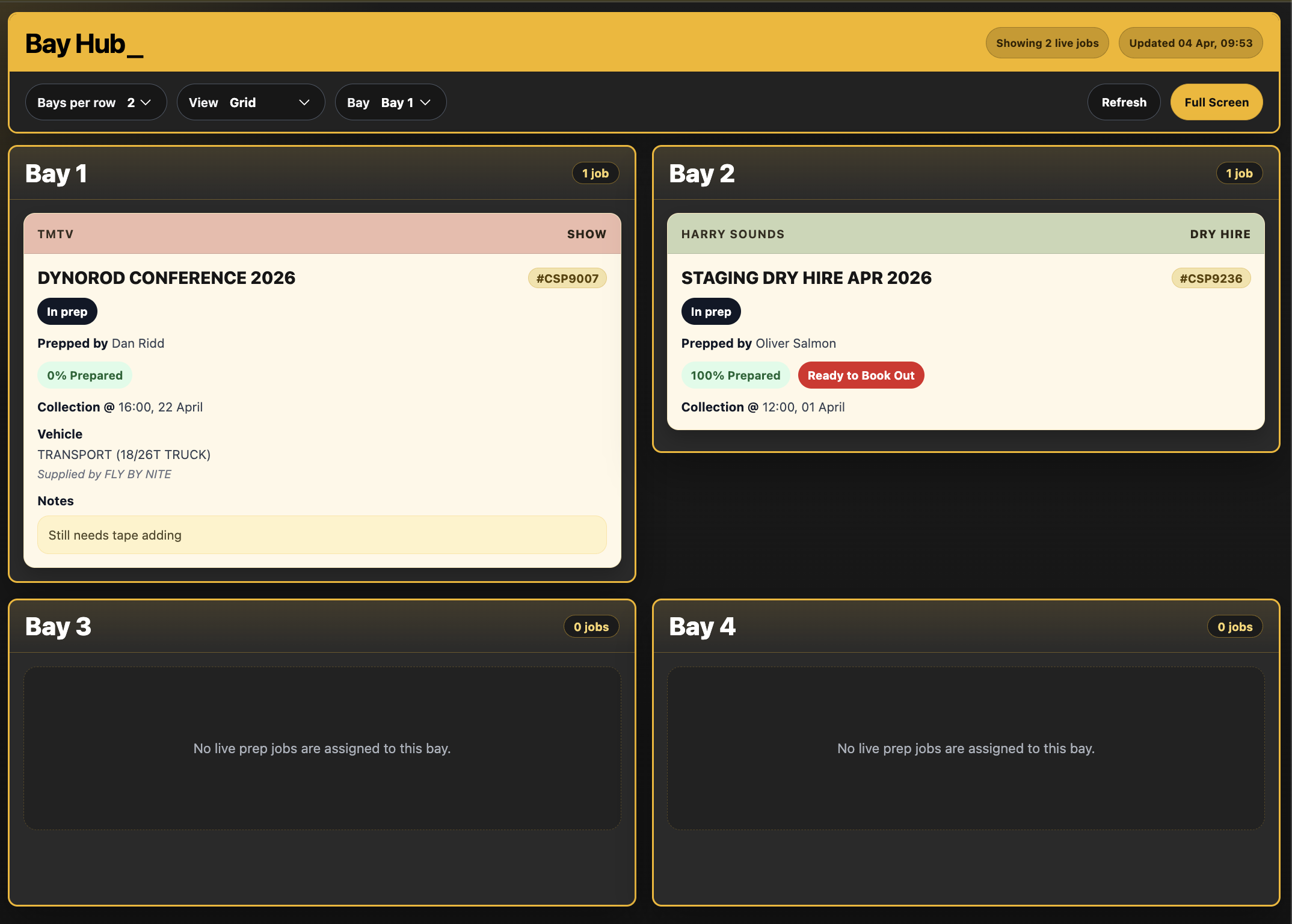
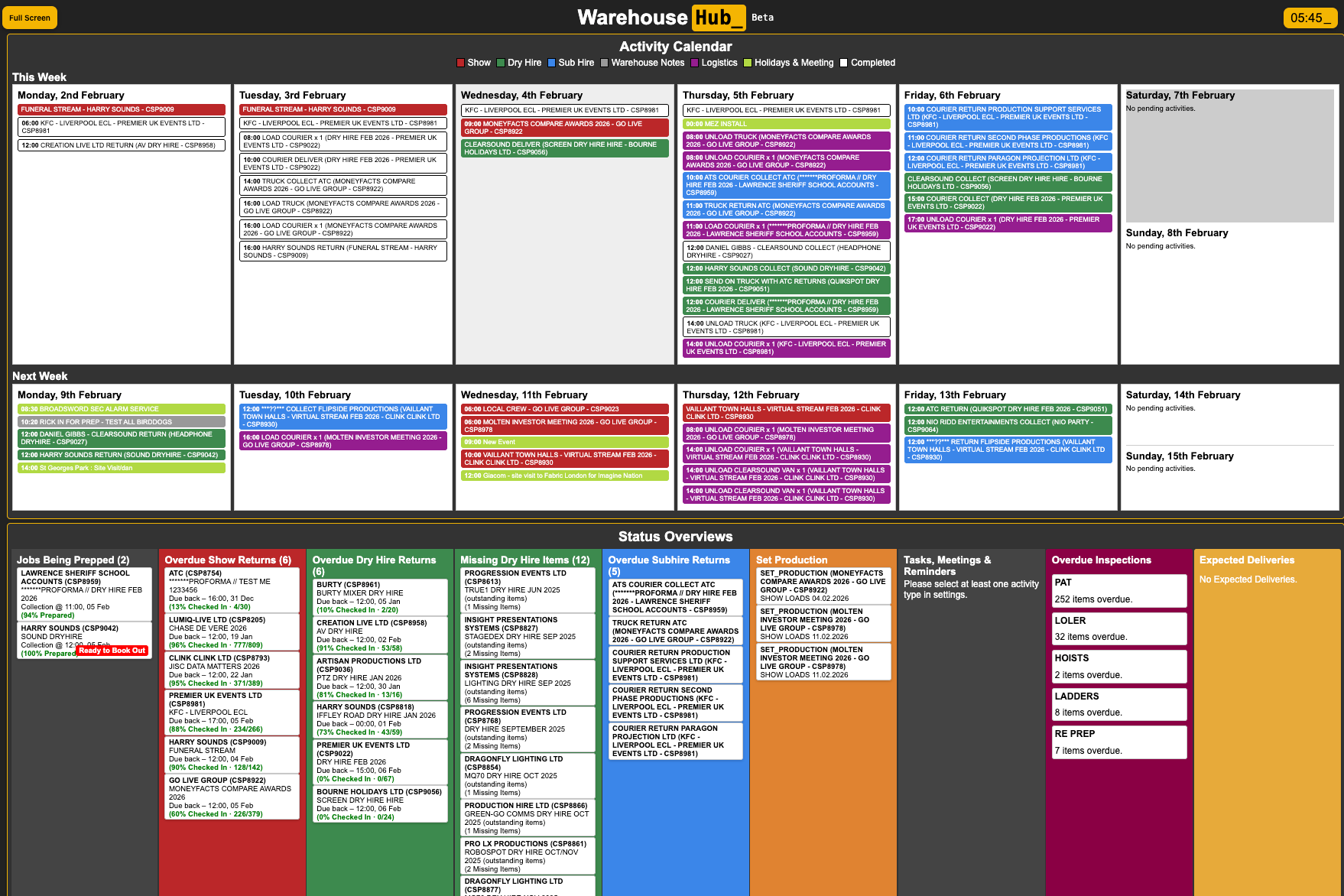
Warehouse Hub gives your team a live, full-screen view of all warehouse jobs and tasks, designed for big displays on the shop floor.
How it works:
Shows a rolling two-week activity planner for all scheduled jobs.
Updates automatically so the whole team always sees the latest schedule.
Optimised for large monitors and TVs in the warehouse.
Settings:
Go to Warehouse Hub Settings to link each Activity Type with an Activity User so jobs display under the correct person or role.
Toggle off any Status Overview you don’t want to display, keeping the screen focused only on the statuses that matter to your team.
To use it:Open Warehouse Hub from the Hub menu.
Use the default two-week view to see upcoming and current activities.
Mount it on a big screen in your warehouse for real-time visibility.
Status Overview Panels
Jobs Being Prepped – Shows all upcoming jobs currently in preparation, with readiness percentages and any notes like Ready to Book Out.
Setup: The Opportunity must have an Opportunity Type set (e.g., Show, Dry Hire, Sales) for it to appear in this panel.
Overdue Show Returns – Displays all Show and Wet Hire jobs that have passed their scheduled.
Setup: The Opportunity must have an Opportunity Type set to Show or Wet Hire for it to appear in this panel.
Overdue Dry Hire Returns – Displays all Dry Hire jobs that have passed their scheduled return date.
Setup: The Opportunity must have an Opportunity Type set to Dry Hire for it to appear in this panel.
Missing Dry Hire Items – Displays dry hire jobs with missing kit, including the count of missing items.
Setup: The Opportunity must have an Opportunity Type set to Dry Hire for it to appear in this panel, and the Subject must also include “outstanding items”.
Overdue Subhires – Shows any overdue sub-hire activities, helping you track supplier returns that haven’t yet been completed.
Setup: Works with Activities — the Sub Hire Activity Type must be assigned in the Warehouse Hub Settings for these to appear in this panel.
Set Production – Displays all live set production activities by their scheduled start date, keeping the team aware of what’s in progress and what needs doing.Setup: Works with Activities — the Set Production Activity Type must be assigned in the Warehouse Hub Settings for activities to appear here.
Tasks, Meetings & Reminders – Shows all live activities and flags any that are overdue, so nothing slips through.
Setup: Multiple Activity Types can be assigned in Warehouse Hub Settings for this panel.
Overdue Inspections – Lists all inspection activities that are overdue, helping ensure compliance and safety checks aren’t missed.
Setup: One or more inspection-related Activity Types must be assigned in Warehouse Hub Settings for this panel.
Expected Deliveries – Shows all expected deliveries up to 31 days ahead, so the team knows exactly what’s on the way.
Setup: Assign the relevant delivery-related Activity Type in Warehouse Hub Settings for this panel.
💡 You can hide any of these panels in Warehouse Hub Settings if they’re not relevant to your workflow.
💡 Why it’s useful:Keeps everyone on the warehouse floor in sync — no missed jobs, just a clear live schedule tailored to your team.
-
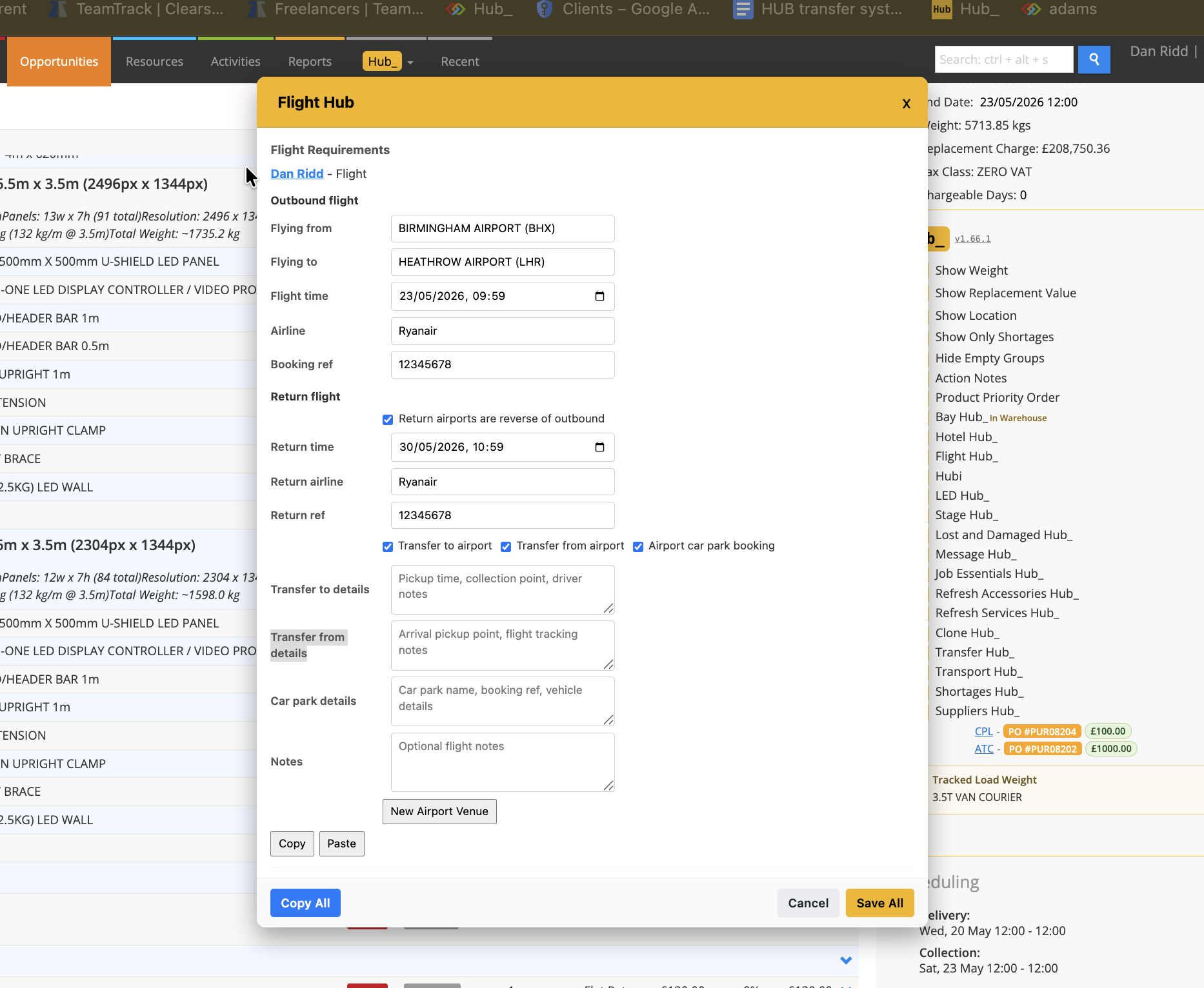
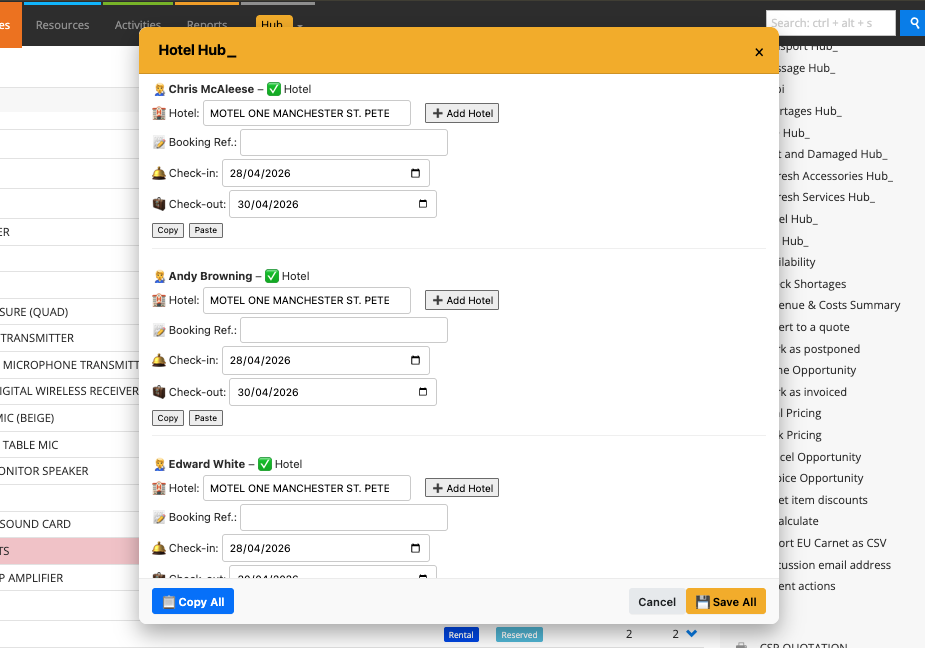
Hotel Hub helps you manage crew accommodation directly from your Opportunity page. It shows a toggle “H” next to each resource, coloured green if a hotel is required and red if not — so you can see hotel needs at a glance. You can choose hotels, add booking references, and set check-in and check-out dates for each crew member — and it can even push these details straight to TeamTrack.
How it works:
Every crew resource on an Opportunity has an “H” toggle — switch it on for those needing a hotel stay.
Once toggled, the system keeps track of who needs a hotel and shows them in the Hotel Hub view.
The popup lets you assign hotel details, add references, and pick check-in/out dates for each person.
When ready, your updates can be saved straight back to Current RMS, pushed to TeamTrack, or copied for easy sharing.
To use it:
Open your Opportunity in Current RMS.
Toggle the “H” for each crew member who needs a hotel.
Click Hotel Hub under Actions.
Fill in hotel names, booking references, and dates in the popup.
Click Save All to update RMS, push to TeamTrack, or Copy All to share.
💡 Why it’s useful:
Hotel Hub keeps your crew accommodation organised in one place — no more scattered notes or missed hotel bookings.
-
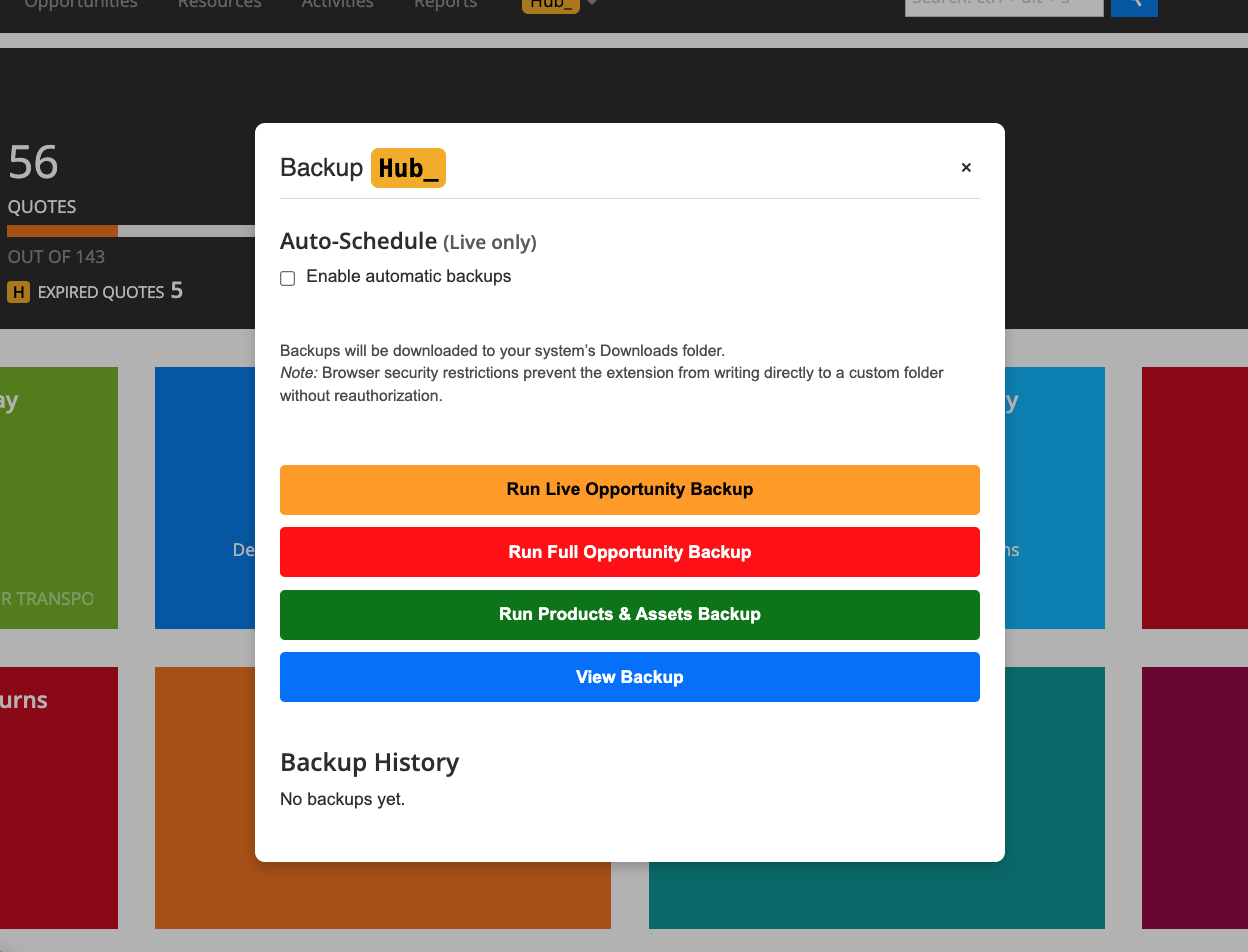
Backup Hub keeps your jobs and kit lists safe by backing up your opportunities into a single JSON file saved straight to your Downloads folder. It shows real-time progress updates, logs each backup with a timestamp and job count, and even includes an offline viewer so you can browse jobs and scan barcodes without internet access. You can scan and record barcodes offline, then push them back to your live opportunity when you’re back online.
How it works:Backs up either your current live opportunities or all opportunities into a single downloadable JSON file.
Stores backups in your Downloads folder so you always have a copy you control.
Lets you view backups offline, search kit lists, and scan barcodes without needing an internet connection.
Tracks and logs every backup run, so you know when it last happened and how many jobs were included.
Any barcodes you scan offline can be pushed back to your live Opportunity once you’re back online using Backup Hub in the main menu.
The Offline Backup Hub is only for emergencies — when Current RMS or your internet is completely down.
To use it:Open Backup Hub in the Hub menu (or Offline Backup Hub in Settings).
Pick Live Backup, Full Backup, or set up an auto-schedule if you want backups to run automatically.
Follow the progress updates and locate your JSON backup file in your Downloads folder.
Use View Backup to browse and scan kit lists offline.
In the offline viewer, click Scan Barcodes to capture kit barcodes while offline.
When you’re back online, open the Opportunity and use Backup Hub in the main menu to push your scans back into Current RMS.
💡 Why it’s useful:Backup Hub gives you peace of mind — you’re always covered if you need to check or restore jobs offline, and you can keep scanning kit even if your internet drops.
-
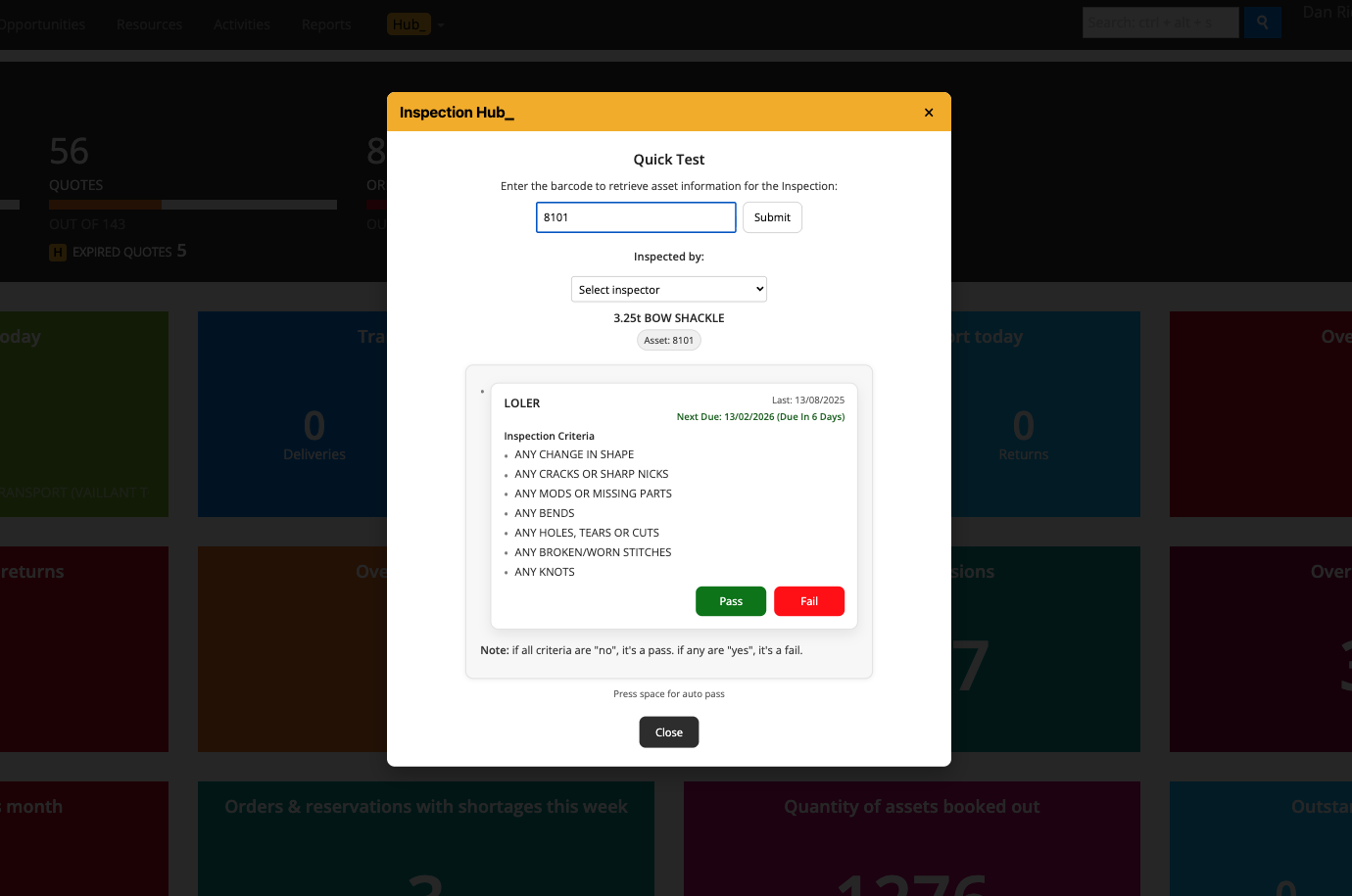
Inspection Hub guides you through fast, step-by-step LOLER equipment inspections directly in your browser. It pulls your inspection types from Current RMS automatically, so you always know exactly what needs checking.
How it works:You must have a LOLER Inspection set up in Current RMS with the right inspection types assigned — the Hub uses this to run the test.
When you scan or type a barcode, the Hub loads the inspection questions for that asset.
For each step, mark it Pass or Fail — or hit the space bar to mark as Pass quickly and keep moving.
When you’re done, just click Submit and your results go straight back to Current RMS.
To use it:Click LOLERInspection in the Hub menu.
Scan or type the barcode for the equipment you want to inspect.
Follow each inspection step — choose Pass or Fail (or use the space bar for quick passing).
When you’re finished, click Submit — your LOLER results will be logged in Current RMS immediately.
💡 Why it’s useful:
Inspection Hub makes your LOLER checks quick, compliant, and properly recorded — so your gear stays safe and your records stay up to date.
-
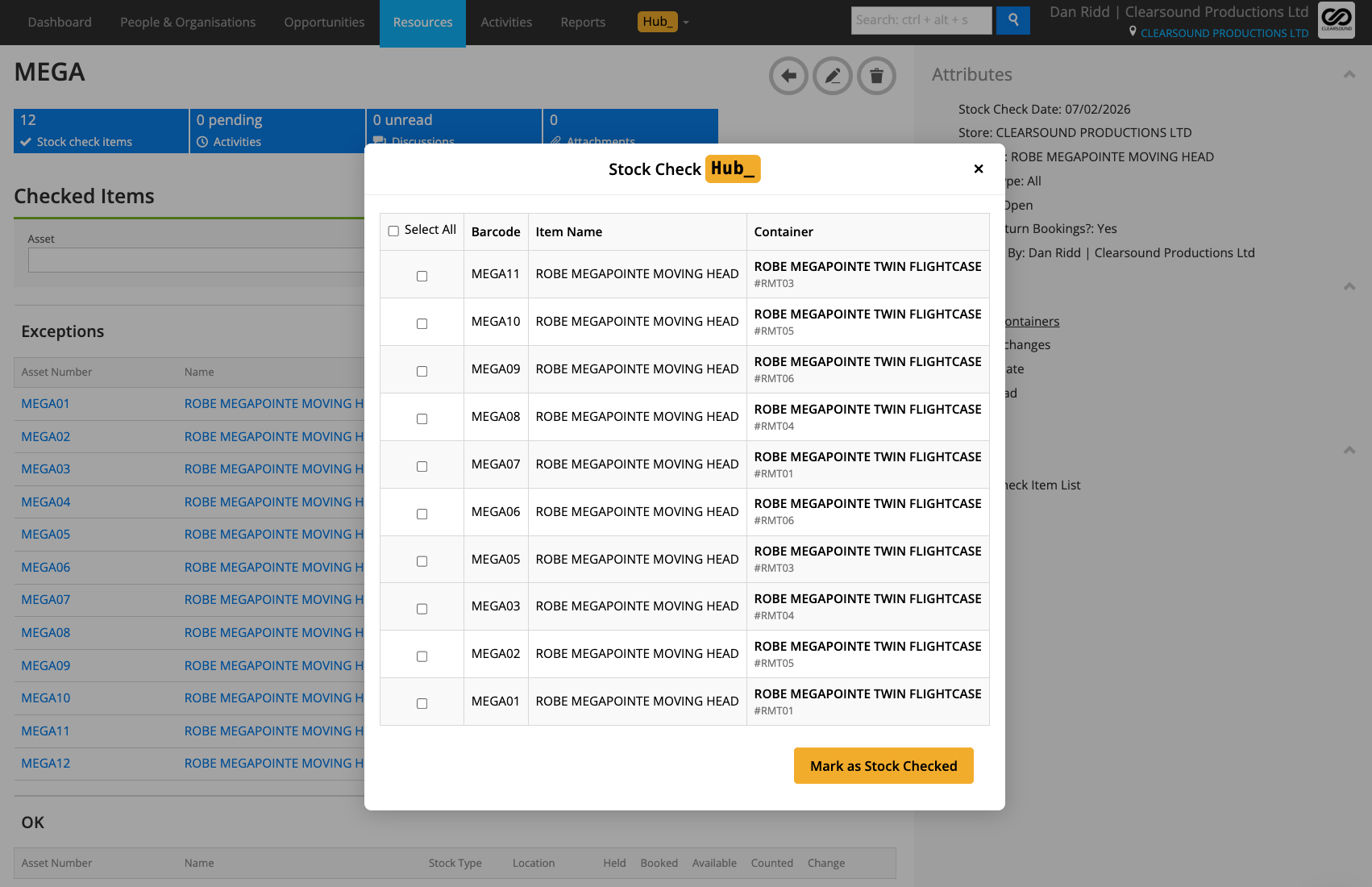
Adds a Check Containers action to the Stock Check page so you can quickly confirm container contents in bulk.
How it works:
Appears on Stock Check pages under Actions as Check Containers.
Opens a Hub popup listing items inside containers where Quantity Counted ≠ Quantity Held.
Shows Barcode · Item Name · Container (name + asset number).
Includes Select All and per-row checkboxes.
Clicking Mark as Stock Checked updates selected rows so Quantity Counted = Quantity Held.
To use it:
Go to a Stock Check in Current RMS.
In the Actions list, click Check Containers.
Review the table and tick items (or Select All).
Click Mark as Stock Checked to post the updates.
Close the popup when done.
💡 Why it’s useful:
Saves time — you don’t need to open every container to stock check each item one by one. Instead, you can batch-mark them in seconds.
-
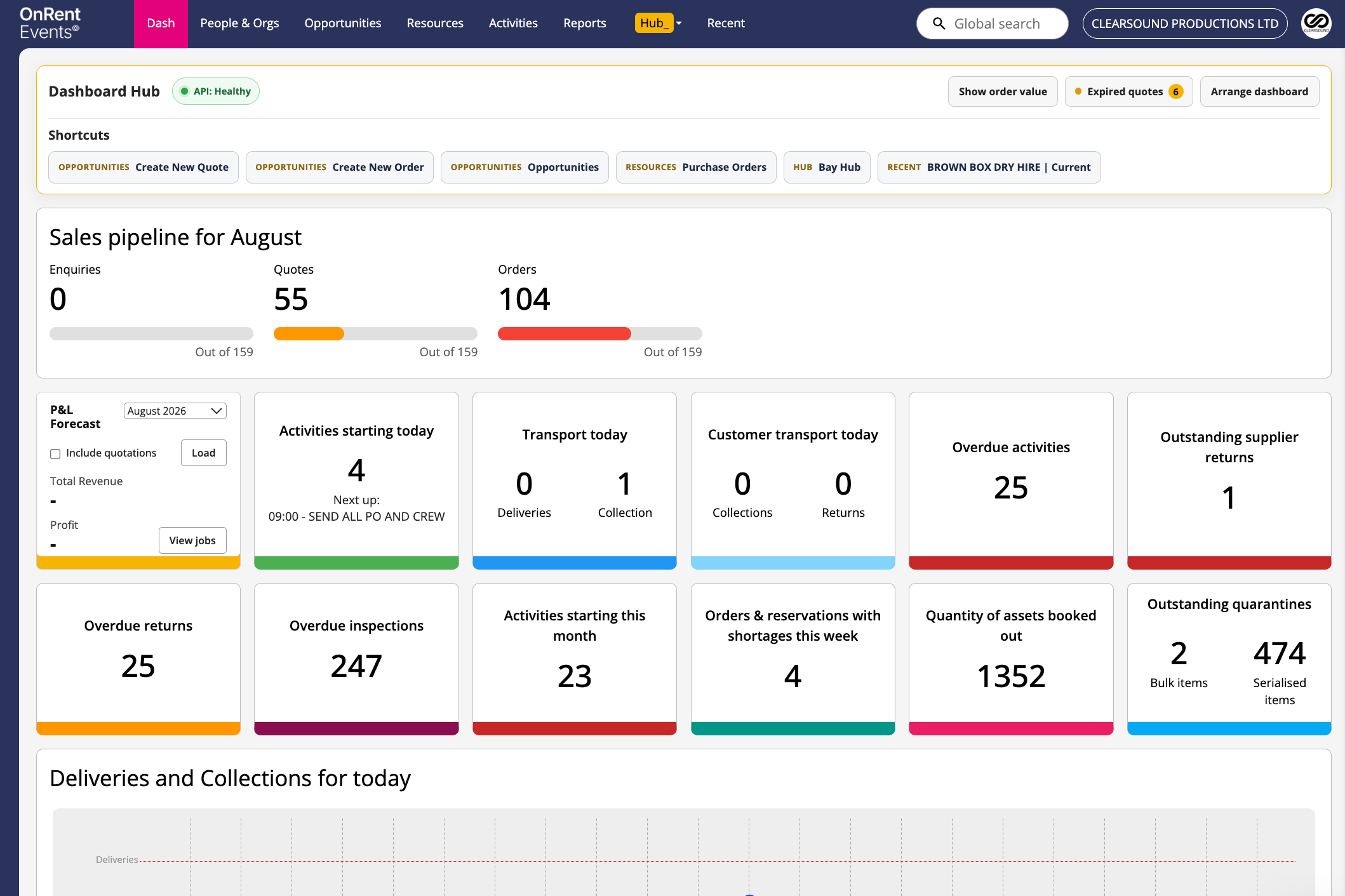
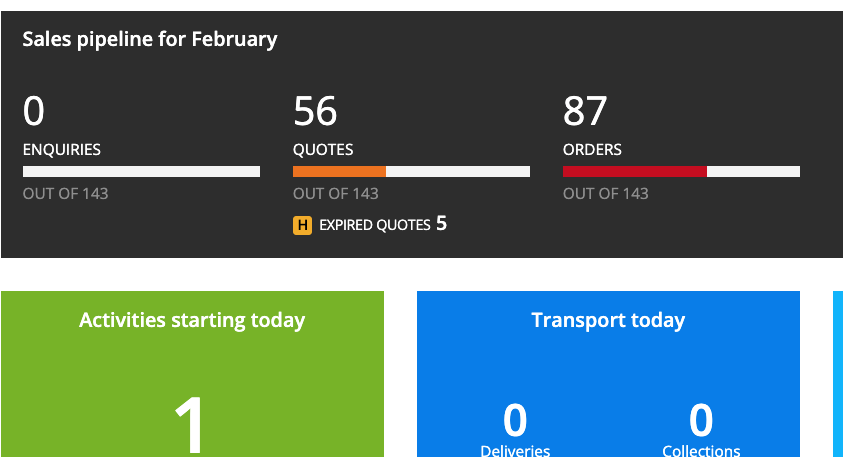
Adds a Clean-Up action to the Current RMS dashboard so you can quickly find and mark expired quotations as DEAD in bulk.
How it works:
Displays EXPIRED QUOTES at the top of the Quotes column on the dashboard.
Clicking it opens a Hub popup showing all Quotation opportunities where the Start Date is in the past.
Shows: Number · Subject · Start Date · Organisation · Status.
Includes Select All and per-row checkboxes.
Clicking Mark Selected Dead triggers a clean, branded confirmation popup.
After confirming, Hub_ instantly sends the “mark as dead” requests to Current RMS (background processing — no need to wait).
To use it:
Go to the Current RMS dashboard.
In the Quotes column, click EXPIRED QUOTES.
Review the expired quotations list.
Tick the jobs you want to clean up (or select them all).
Click Mark Selected Dead.
Confirm in the popup.
Close the popup — Current RMS will finish processing the updates in the background.
💡 Why it’s useful:
Keeps your system tidy.
Old quotes build up fast — Clean-Up Hub_ lets you bulk-mark outdated quotations as DEAD in seconds, without opening them one by one. It keeps your pipeline clear, improves reporting accuracy, and saves loads of admin time.
-
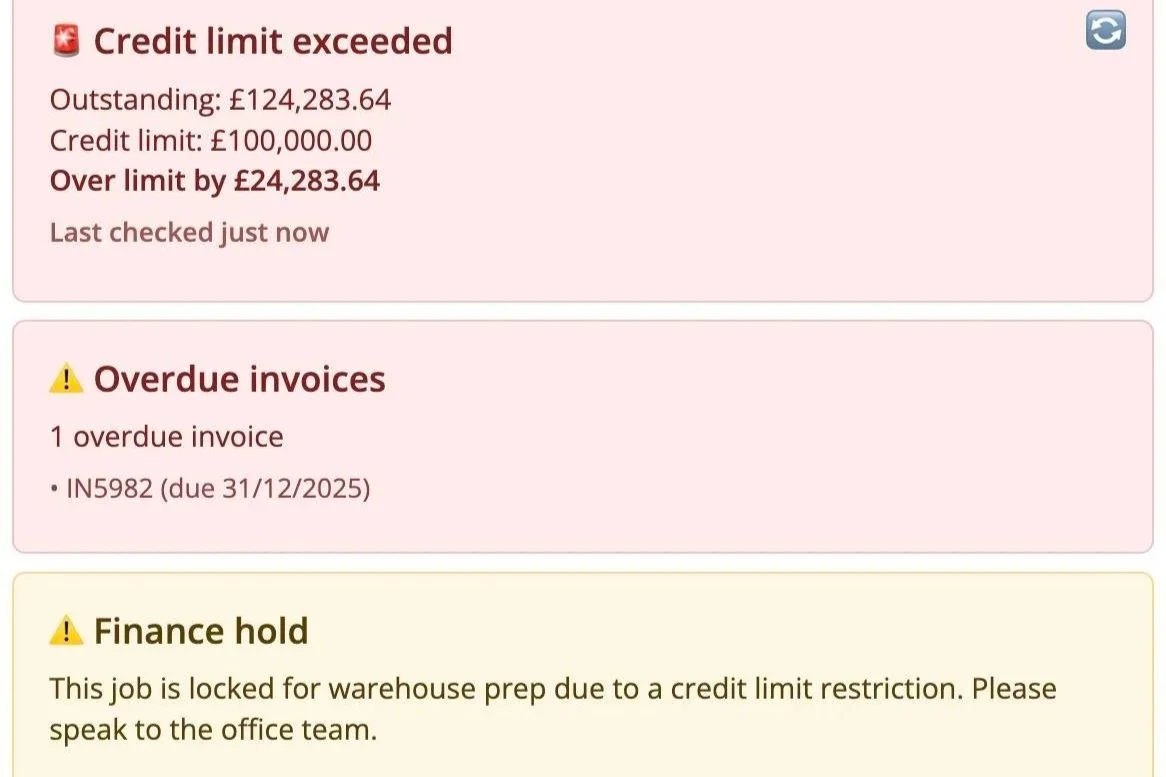
Credit Control Hub helps you stay on top of customer credit limits directly from the Opportunity page. It automatically checks outstanding balances from Xero and shows clear visual warnings when a client is approaching or exceeding their credit limit, helping you avoid unwanted risk before work goes ahead..
How it works:
Credit Control Hub pulls live invoice data from Xero and calculates the customer’s current outstanding balance.
It compares this against the credit limit stored in Current RMS.
If the job value would push the account over its limit, a warning banner is shown.
If the credit limit is already exceeded and finance hold is enabled, the job is locked from progressing.
A refresh button lets you re-check balances instantly without reloading the page.
To use it:
Open an Opportunity in Current RMS.
Enable Credit Control Hub in Hub settings.
Ensure the customer has Credit Limit and Credit Limit Hold fields set.
If required, refresh to re-check live Xero data.
💡 Why it’s useful:
Credit Control Hub removes guesswork and last-minute surprises by making financial risk visible at the point of action, helping teams stay compliant, informed, and in control.
-
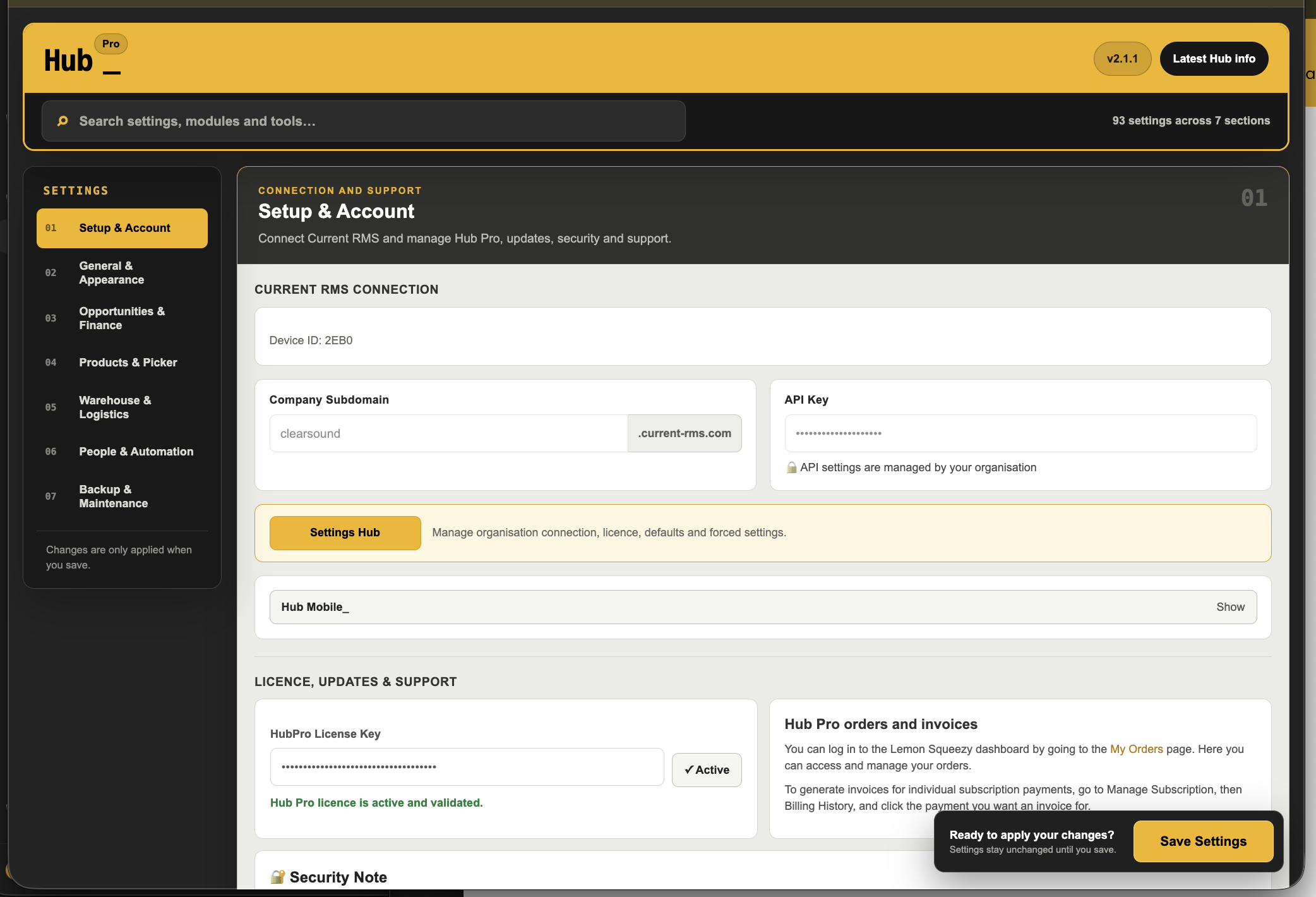
API & Licence Setup (Organisation Level)
To centrally manage your Hub settings across all machines, you can define your API and licence details directly inside Current RMS.
Add your Hub Organisation Config
Go to People → Your User (Member 1) in Current RMS and add the following to the Description field:
# Hub Organisation Config
hub.apiKey=YOUR_API_KEY_HERE
hub.subdomain= YOUR_SUBDOMAIN
hub.license= YOUR_LICENSE_KEYWhat this does
Automatically configures Hub for all users
Locks API credentials (users cannot edit them)
Enables licence validation
Removes the need for manual setup on each machine
Feature Control Setup (Organisation Policy)
Create a new inactive service in Current RMS with the following name exactly :
Settings Hub (do not delete)
Inside the description field of the service, add your configuration using the format below.
This acts as your organisation policy.
Feature Control Rules
force.enableAutomatedActivities=true
force.enableCreditControlHub=true
force.showOverdueInvoices=true
default.enableBackupHub=false
force.enableRefreshAccessoriesHub=true
force.enableActivityHub=true
force.enablePendingActivities=true
force.enableTransportHub=true
force.enableHotelHub=true
force.enableInspectionHub=true
force.enableOptionalAccessories=true
force.enableRefreshServiceHub=true
force.enableVolume=false
default.enableCreateNewMenu=true
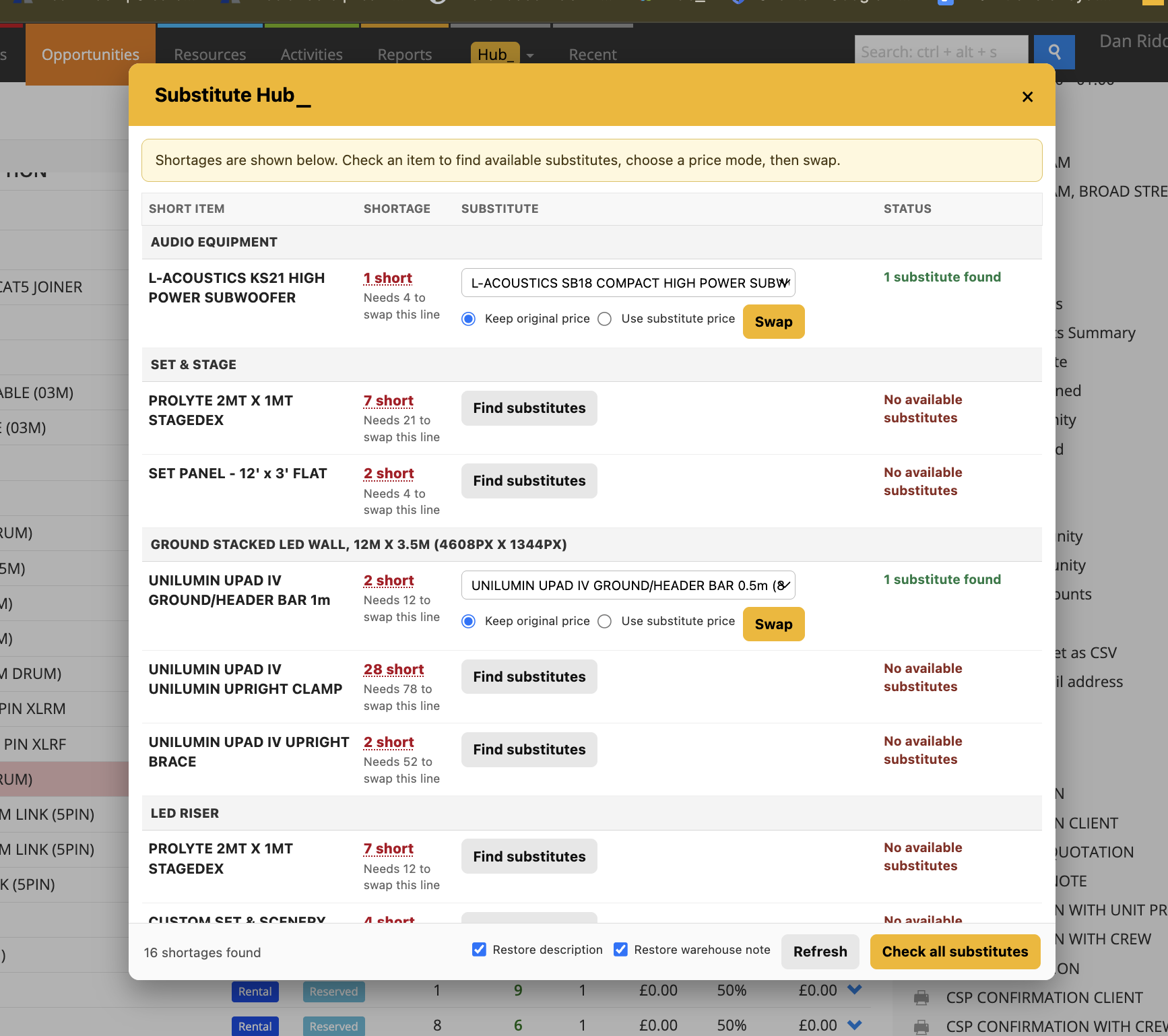
force.enableSubstitutePriceMatch=true
force.showItemAsShortage=true
force.enableHideRedSales=true
force.enableGlobalAvailability=false
force.invertLogo=false
force.enablePostcodeAutofill=true
force.autofillUppercase=true
force.enableMessageBox=true
force.disablePopupOnLanding=false
force.showRiskFlags=true
force.forcePopupOnRisk=true
force.enableShortages=true
force.shortageFormat=name-x-qty
force.enableCheckInHub=true
force.enableSuppliers=true
force.enableManualPONumbers=false
force.removePOPrefix=false
force.requireDeliveryCollectionDates=true
force.enableHubi=true
force.hubiOpenAiKey=YOUR-KEY
force.lockActivityHubSettings=true
force.lockWarehouseHubSettings =true
How this works
force. → locks the setting ON/OFF for everyone
default. → sets a default but allows user override
Settings apply instantly when the popup opens
No reload required
You can control how item quantities appear in the Shortages Hub using the force.shortageFormat setting.
force.shortageFormat=name-x-qty
Available formats:
name-x-qty → Name x Qty
qty-name → (Qty) Name
bracket-qty-name → [Qty] Name
qty-x-name → Qty x Name
name-comma-qty → Name, Qty pcs
Once present, Hub will automatically detect and apply these settings when the popup opens.
ACTIVITY HUB_
-
Pending Activities
How it works:
When you scan a flightcase barcode, the system “opens” that case in a temporary container view, showing you exactly what should be inside.
Scan each individual item inside — each one is globally checked in immediately.
If you scan an item that’s not expected in the container, the system will notify you so you can sort it out on the spot.
Scan the same flightcase barcode again to “close” the case and clear the container view.
Any loose items you scan outside a flightcase are globally checked in too — bulk barcodes are ignored automatically.
If any item is in quarantine, it will be flagged during check-in so you don’t miss it.
When you’re done, use the Complete button in Check-In Hub to finish the global batch and clear the list.
If you just want to run Global Check-In and skip containers, click “Disable Containers” to keep it simple.
To use it:
Add all your flightcase barcodes in Settings so they’re recognised when scanned.
Click Check-In Hub in the Hub Menu.
Scan a flightcase barcode — the case “opens” and shows its expected contents.
Scan each item inside — they’re globally checked in and marked off. You’ll be alerted if anything unexpected turns up.
Scan the flightcase barcode again to “close” the case and clear that view.
Any loose items you scan are globally checked in too — bulk barcodes are ignored.
Use the Complete button to finish the batch and clear your global check in list.
Click “Disable Containers” if you just want to do Global Check-In only.
💡 Why it’s useful: Check-In Hub keeps your returns smooth, fast, and accurate — so you never miss an item, and anything extra or in quarantine is caught before it hits the shelf.tion text goes here
How it works:
When you scan a flightcase barcode, the system “opens” that case in a temporary container view, showing you exactly what should be inside.
Scan each individual item inside — each one is globally checked in immediately.
If you scan an item that’s not expected in the container, the system will notify you so you can sort it out on the spot.
Scan the same flightcase barcode again to “close” the case and clear the container view.
Any loose items you scan outside a flightcase are globally checked in too — bulk barcodes are ignored automatically.
If any item is in quarantine, it will be flagged during check-in so you don’t miss it.
When you’re done, use the Complete button in Check-In Hub to finish the global batch and clear the list.
If you just want to run Global Check-In and skip containers, click “Disable Containers” to keep it simple.
To use it:
Add all your flightcase barcodes in Settings so they’re recognised when scanned.
Click Check-In Hub in the Hub Menu.
Scan a flightcase barcode — the case “opens” and shows its expected contents.
Scan each item inside — they’re globally checked in and marked off. You’ll be alerted if anything unexpected turns up.
Scan the flightcase barcode again to “close” the case and clear that view.
Any loose items you scan are globally checked in too — bulk barcodes are ignored.
Use the Complete button to finish the batch and clear your global check in list.
Click “Disable Containers” if you just want to do Global Check-In only.
💡 Why it’s useful:
Check-In Hub keeps your returns smooth, fast, and accurate — so you never miss an item, and anything extra or in quarantine is caught before it hits the shelf.tion text goes here
-
Item Automatically manage your tasks based on the status of your Opportunity — so your activity list stays tidy without manual cleanup.
How it works:
When an Opportunity is marked Completed, all its activities are automatically marked as complete.
If the Opportunity is marked Dead, Lost, or Cancelled, all activities are automatically deleted.
If the Opportunity is Postponed, no changes are made — activities stay as they are.
To use it:
Just change the status of your Opportunity — Hub handles the activities for you.
💡 Why it’s useful:
Saves time and reduces clutter by automatically clearing out activities you no longer need.
-
You can now mark activities as complete directly from the Calendar view.
How it works:
Just right-click an activity in the calendar to mark it as Complete — no need to open it.
To use it:
Open an Opportunity in Current RMS.
Click the Calendar tab near the top.
Right-click an activity to mark it as complete.
💡 Why it’s useful:
Quickly tick off completed tasks straight from your calendar — ideal for fast updates while you plan.
-
You can now set an Opportunity Type (e.g. Show, Dry Hire, or Sales) directly from the Opportunity page. Hub will use this to configure the job for the right type — hiding fields you don’t need and lining up the correct activity automation.
How it works:
Select an Opportunity Type to instantly adjust the layout and show only the relevant fields.
Hub will automatically set up the correct activities for that job type.
You can fully customise names, colours, and automation rules for each type in Activity Hub Settings.
To use it:
Open an Opportunity in Current RMS.
Set the Opportunity Type from the Hub dropdown on the page.
Hub will adjust the job automatically.
✅ Head to Settings to customise names, colours, and activity automation for each type.
💡 Why it’s useful: Saves setup time, keeps your workflow consistent, and ensures each job is configured correctly based on its type.
STORE TRANSFER HUB_
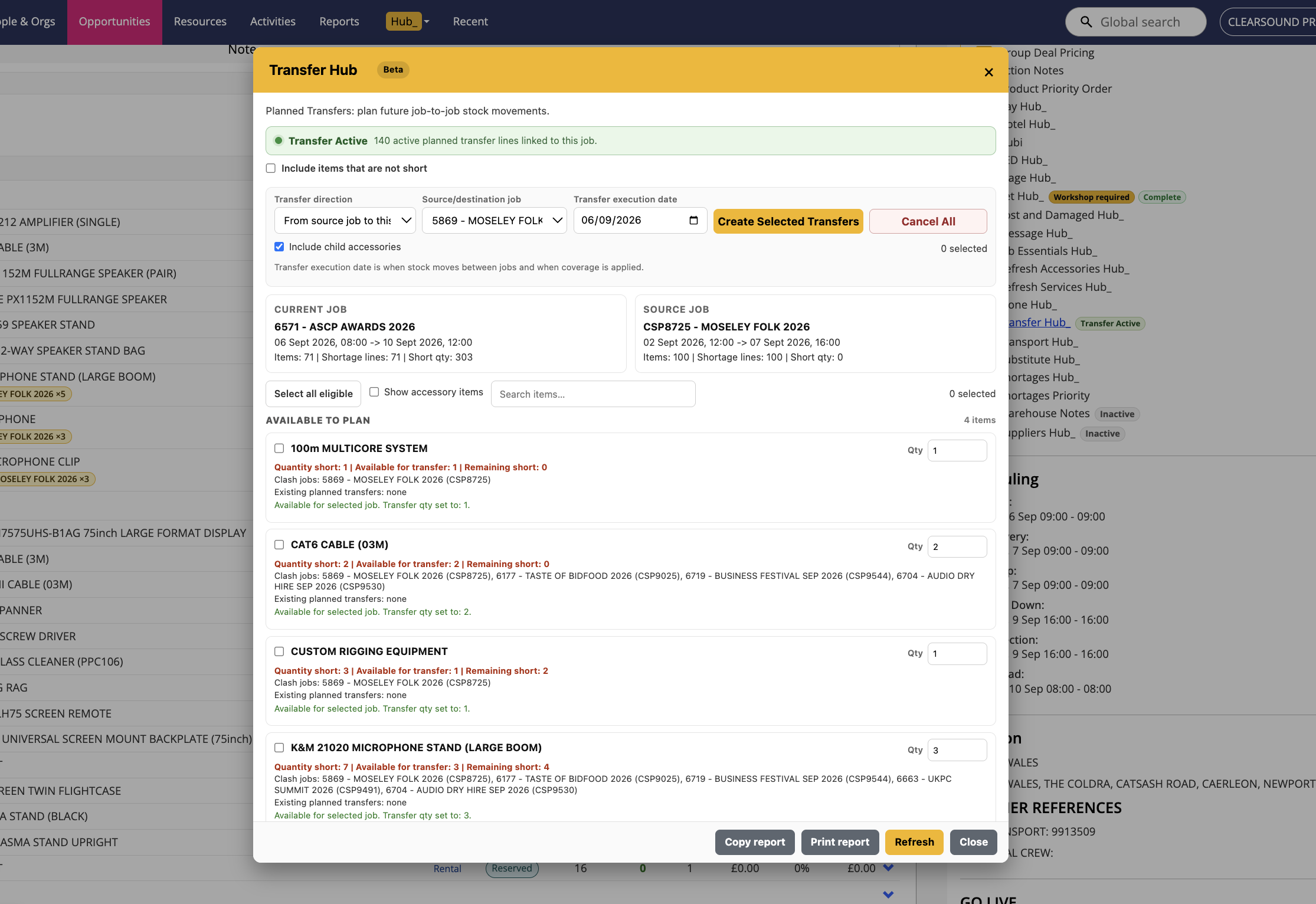
Store Transfer Hub is designed to make managing kit between multiple stores simple and transparent. It’s built to stop shortages across sites and give you the tools to plan and balance stock before it becomes a problem.
Global Availability (Today) is the first step in building Store Transfer Hub — giving you a live, store-by-store snapshot of what’s on hand, booked, held, and quarantined. From there, you can see shortages instantly and plan transfers in new ways.
-
Global Availability (Today) gives you a quick overview of stock across all stores in your Current RMS account — so you can spot shortages and plan transfers instantly.
How it works:
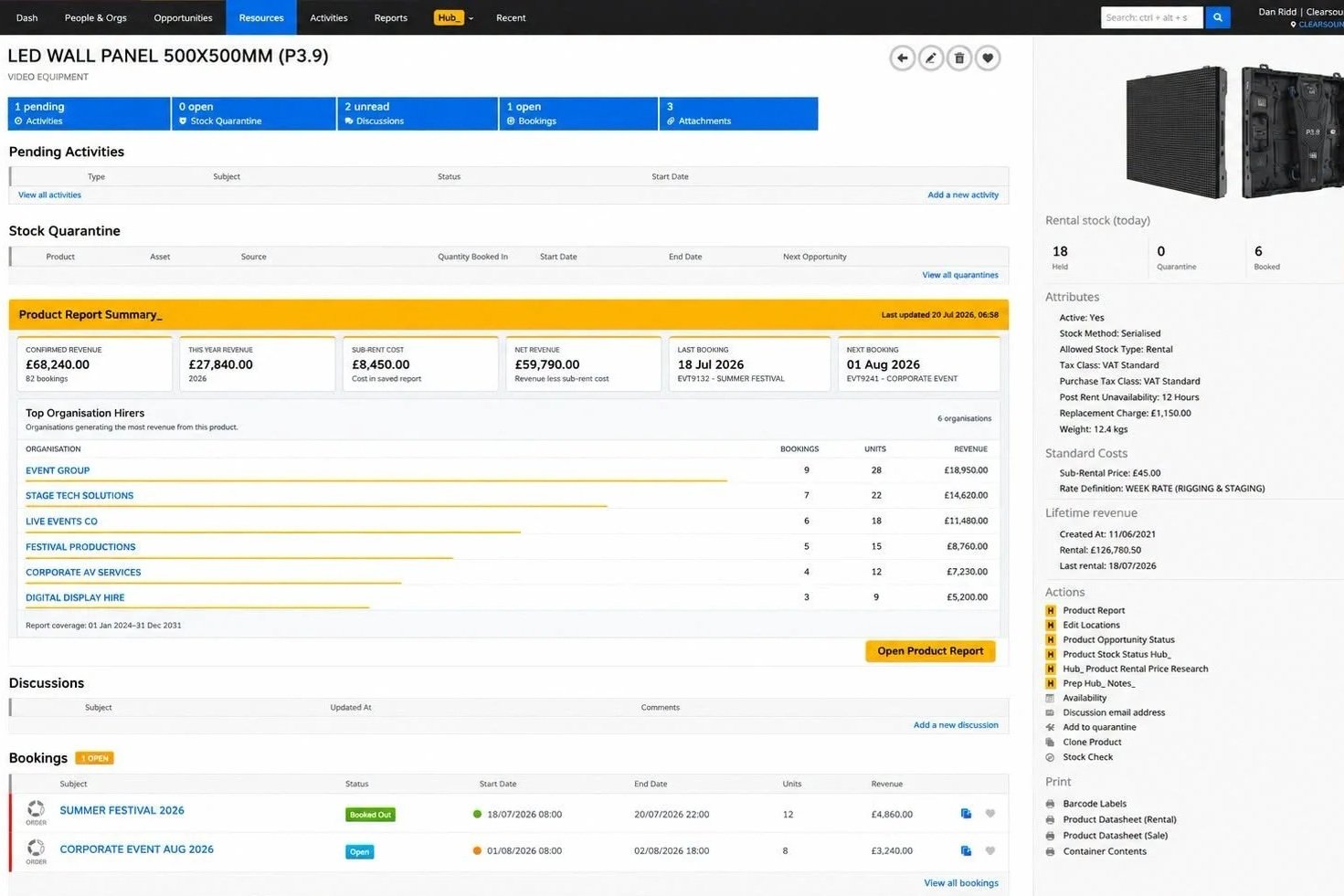
Appears as a new Global Availability (Today) panel on product pages (only when multi-store accounts are active).
Shows availability store-by-store, including On Hand, Booked, Held, and Quarantined.
Updates live for the current day, so you always see the most accurate picture.
Items in quarantine are shown with a 🛠 icon and deducted from availability totals.
To use it:
Open a Product page in Current RMS.
Scroll to the Global Availability (Today) panel (only visible if you have multi-store enabled).
Review each store’s availability side-by-side.
Use the data to plan transfers or sub-hires before shortages hit.
💡 Why it’s useful:
Instantly see what stock is available in every store today — making it faster to balance shortages, plan transfers, and keep jobs moving.
-
Store Transfer Hub now extends into the product/service picker, so you can see stock availability from other stores without leaving the modal. A new “Store Xfer Available” column appears directly in the picker, showing live availability across your active stores.
How it works:
Displays a Store Xfer Available column in the product/service picker.
Shows availability as the lowest transferable quantity across the whole job window.
Hover over the badge to see a per-store breakdown of availability.
Runs only when Transfer Hub is enabled.
Automatically skips non-stock rows to keep the picker clean.
To use it:
Open a product/service picker in Current RMS.
Look for the Store Xfer Available column.
Hover over any badge to see per-store availability.
Use the information to plan and transfer stock between stores more effectively.
💡 Why it’s useful:
You no longer need to leave the picker to check store availability — saving time, reducing clicks, and giving you a clear view of what’s truly transferable.tem description