Inspection Hub_
Run Quick Test, import external test results and print the latest inspection result for each asset.
Inspection Hub uses the inspection definitions configured in Current. Its three workflows cover recording a checked item, importing supported tester files or Sheets, and building an account-wide inspection report.
What It Does
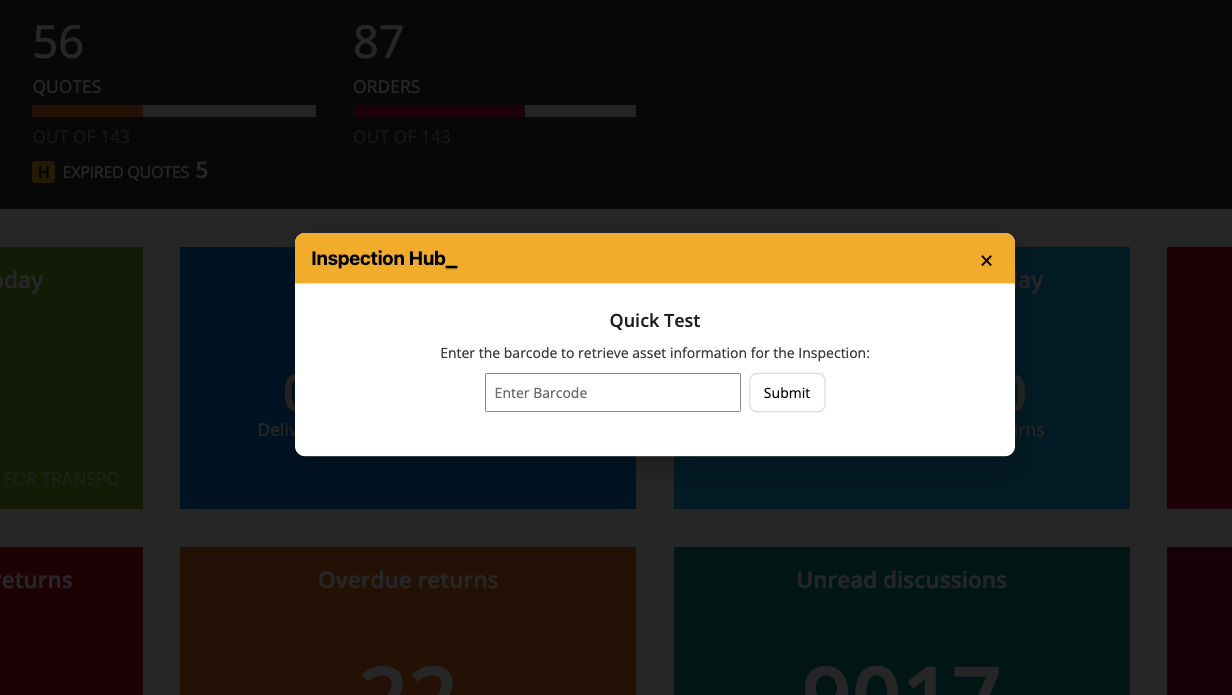
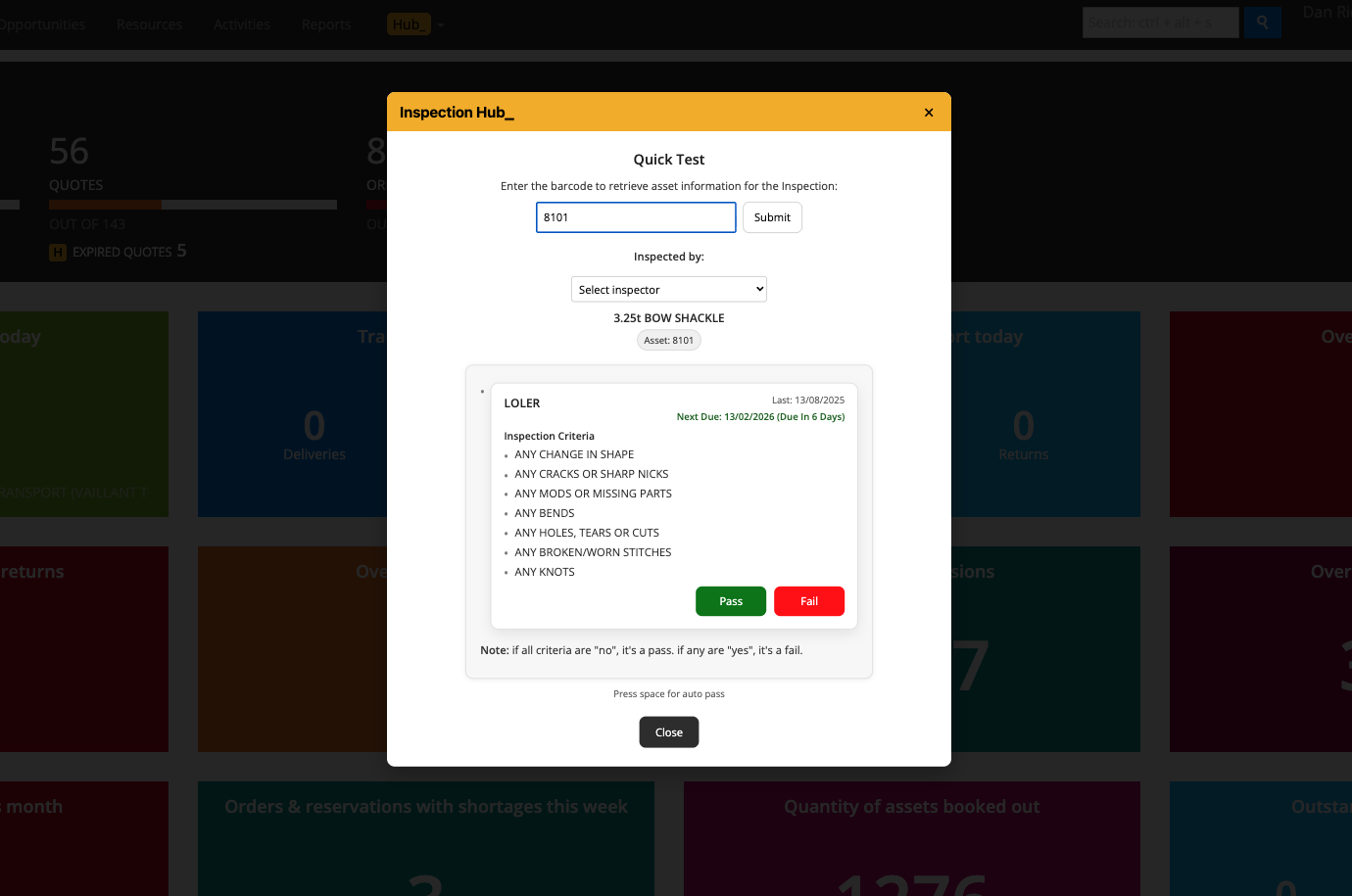
Quick Test loads the relevant inspection definition from a scanned or typed asset barcode
Records the selected tester, supported entered task values and an explicitly passed inspection result when Pass is selected
Quick Test settings define the Yes/No value written for each Boolean criterion on a passed inspection; unconfigured Boolean criteria default to No
Allows inspection types to be excluded from Quick Test and uses shared scan-check information for flagged assets
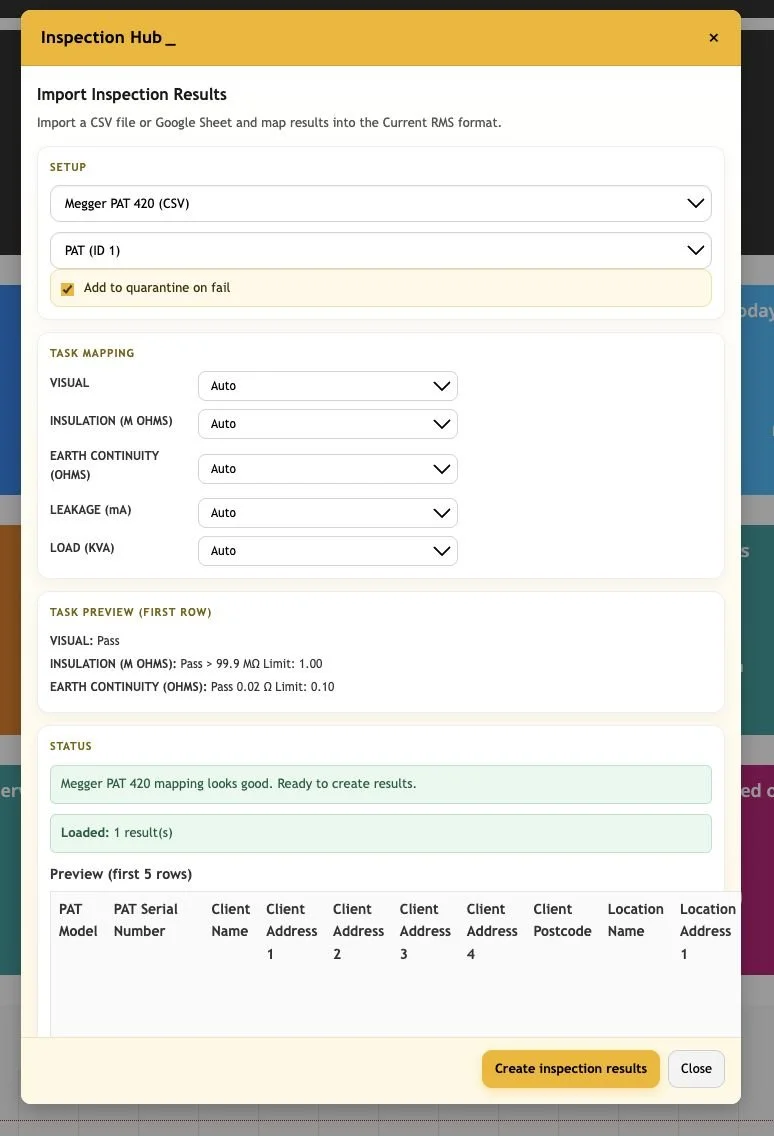
Import Inspection Results supports the available PATGuard, Seaward Apollo, Fluke, Megger, SupaPAT and LOLER formats, plus a readable Google Sheet
Provides date filtering, inspector selection, task mapping and a preview before importing
Checks for a duplicate inspection timestamp for the asset and inspection before creating a result, and reports skipped or failed rows
Offers Add to quarantine on fail for applicable imported failed inspections
Inspection Reports selects the latest result per asset for an inspection type, with Passed, Failed and Unknown summaries and a printable branded report
How To Use It
Configure the inspection and its task definitions in Current before using the Hub.
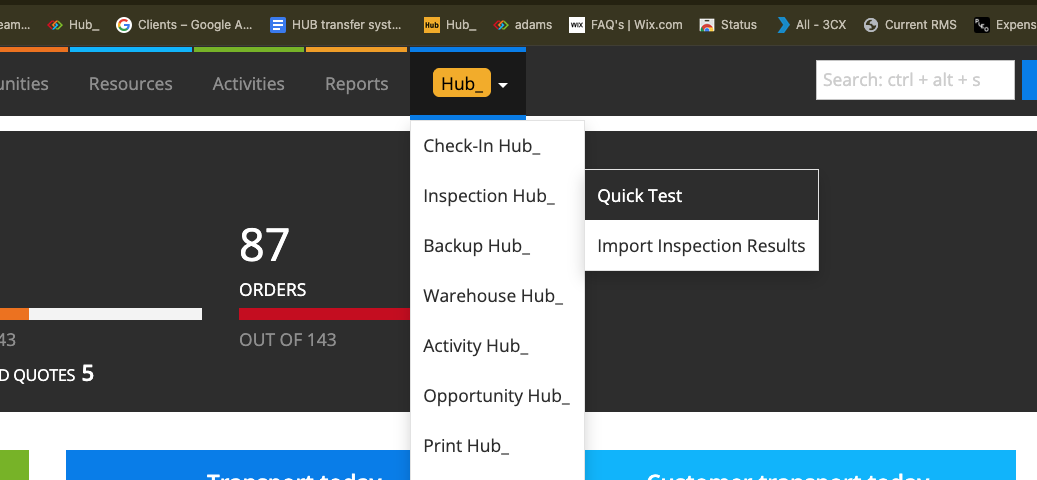
For Quick Test, open Inspection Hub → Quick Test. Use its settings control to review permitted inspection types and the Boolean values that should be recorded on a pass, then save the settings.
Choose the tester, scan or enter the asset barcode, carry out the required physical inspection and enter the supported task results.
When the item has passed the required checks, select Pass. The space-bar shortcut also submits Pass when applicable. Check the recorded result; the configured Boolean values are written as part of that pass.
For an import, choose Import Inspection Results, select File type and Inspection, set the date range and load the supported file or readable Google Sheet.
Review the Tested By selection, task mapping, preview and optional Add to quarantine on fail setting. Select Create inspection results and review created, skipped and error counts.
For reporting, open Inspection Reports, select the Inspection type and choose Fetch Results. Review the latest-per-asset preview and summary, then select Print Report.
💡 Why it’s useful:
Inspection Hub keeps live recording, external results and reporting close to the asset records. Visible settings and previews help the team record the intended criteria and identify duplicate or unsuccessful imports before relying on the results.