Transport Hub_
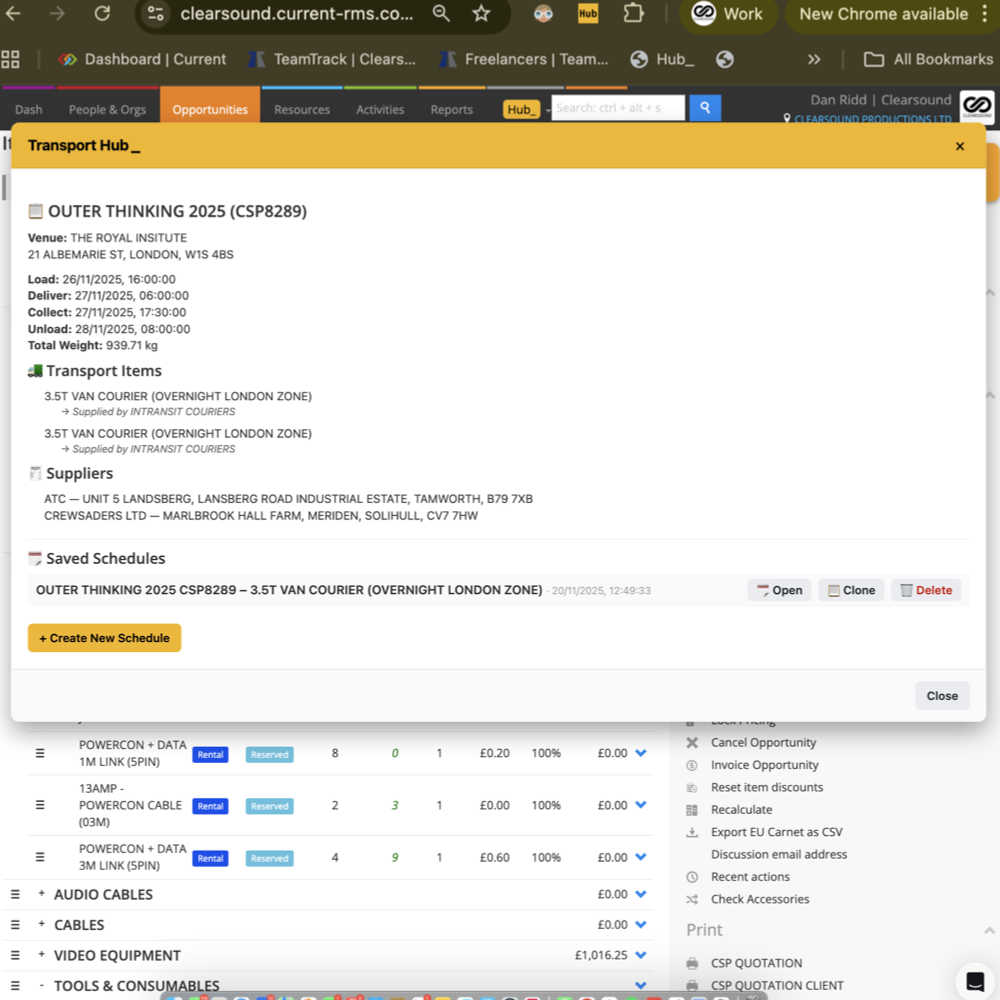
Transport Hub_ helps you plan, track, and share vehicle schedules directly inside Current RMS — complete with delivery, collection, and contact details. It keeps your logistics in sync across the team and automatically updates the related Transport item.
How it works:
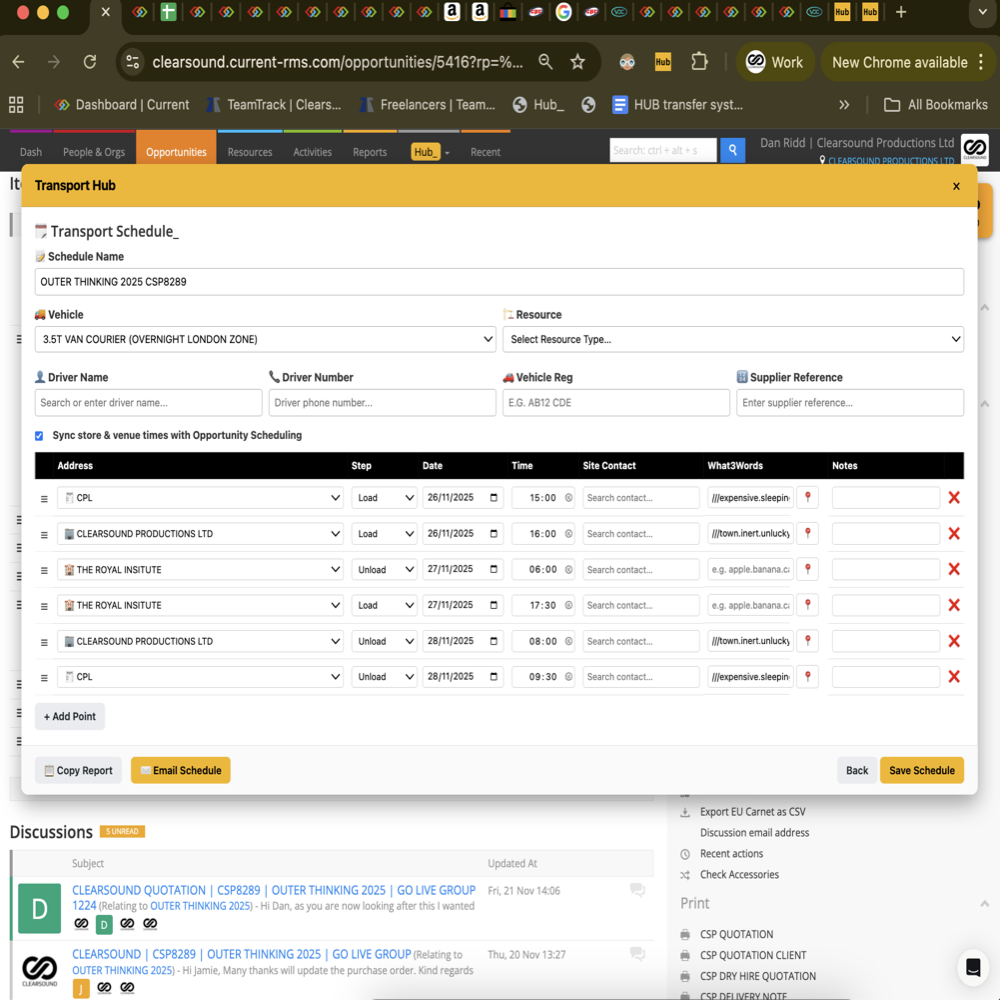
Transport Hub_ lets you build a clear schedule for each job — showing Load and Unload points, dates, times, addresses, and onsite contacts.
You can assign a vehicle, supplier, and driver, and save everything directly into the Opportunity’s transport_hub custom field.
When you click Save, the full formatted schedule is automatically stored to the related Transport item’s transport_schedule custom field.
The system can detect whether the transport is handled internally or sub-hired, and adjusts automatically, assigning the correct supplier or vehicle reference.
If you edit the schedule later, re-saving instantly updates the same fields, ensuring everyone works from the latest logistics plan.
To use it:
Open any Opportunity that includes a Transport item.
Click Transport Hub_ from the Hub menu or under Actions, this opens the main Transport Hub screen.
Click + Create New Schedule to open the Schedule Builder.
Select your vehicle, supplier, and driver.
Add or adjust Load and Unload points (these default to Store → Venue → Venue → Store).
Enter dates, times, and site contact details for each point.
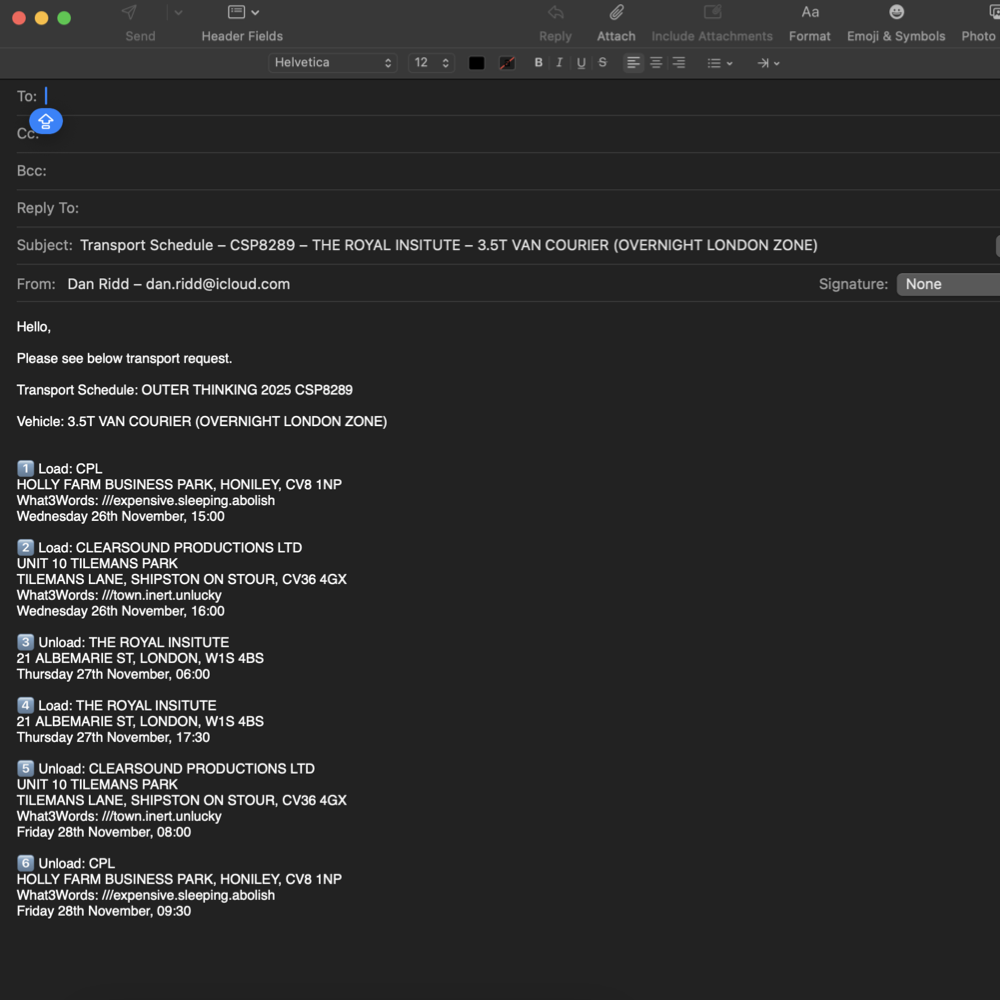
Click Save Schedule, your schedule is stored automatically to both the Opportunity and the related Transport item, ready for reports, documents, and emails.
💡 Why it’s useful:
Transport Hub_ keeps your logistics and equipment teams in sync — no more hunting through emails or spreadsheets. Everyone can see exactly where and when each vehicle is moving, who’s driving, and what’s being delivered — all saved automatically inside the Opportunity.
🎥 For a walkthrough, watch this video: