Message Hub_
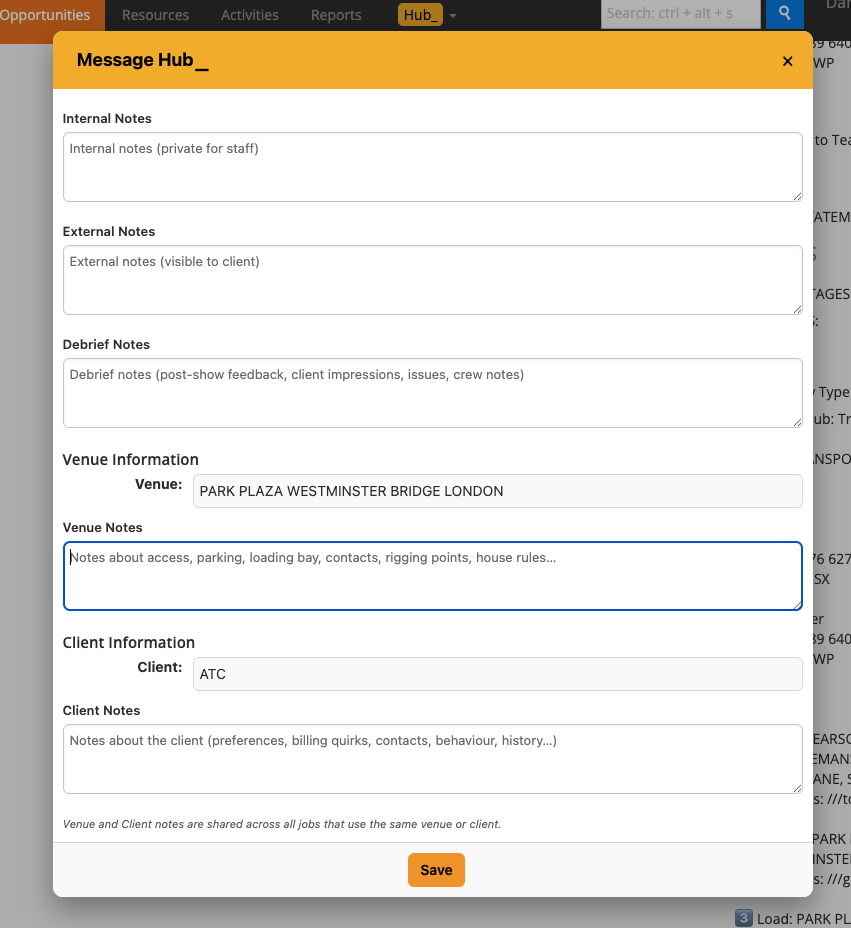
Message Hub pops up automatically when an Opportunity has notes — or you can open it manually from the Actions menu. It brings all key job notes into one clear, focused popup and plays a soft sound when it appears, so nothing important gets missed.
It’s designed to keep critical information visible at the right moment, without digging through multiple tabs or fields.
How it works
Internal Notes
For your team only. Use these for prep instructions, reminders, issues, or internal updates that should never be seen by the client.
External Notes
Client-facing notes for delivery details, changes, or updates you want the customer to see.
Debrief Notes
Post-show feedback, issues, crew notes, or anything that needs recording after the job is complete.
Venue Notes
Shared venue information such as access, parking, loading bays, rigging points, contacts, or house rules. These notes are reused across all jobs at the same venue.
Client Notes
Shared client information like preferences, billing quirks, contacts, or past history — visible on all Opportunities for that client.
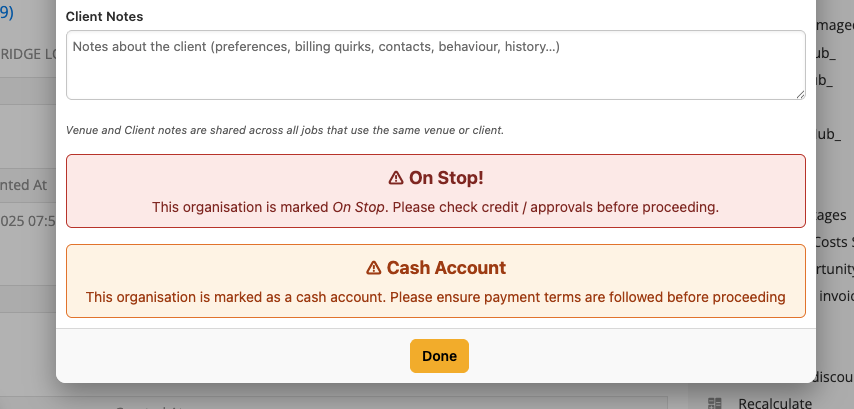
Account Warnings
If the linked organisation is marked as On Stop or a Cash Customer, Message Hub shows a clear on-screen warning when the Opportunity loads.
Popup Control
If you don’t want Message Hub to open automatically, go to Hub Settings and enable Disable Popup on Landing.
To use it
Open an Opportunity in Current RMS.
Message Hub will pop up automatically, or open it manually under Actions.
Enter notes in the relevant section (Internal, External, Debrief, Venue, or Client).
Click Done — everything is saved directly to the Opportunity (and shared where applicable).
💡 Why it’s useful
Message Hub keeps all critical job information in one place — before, during, and after the job. It prevents missed notes, highlights important account statuses like On Stop or Cash Customer, and ensures venue and client knowledge carries across jobs automatically.
🎥 For a walkthrough, watch this video: