Warehouse Hub_
Give the warehouse a shared view of the upcoming schedule, active prep, returns and tasks.
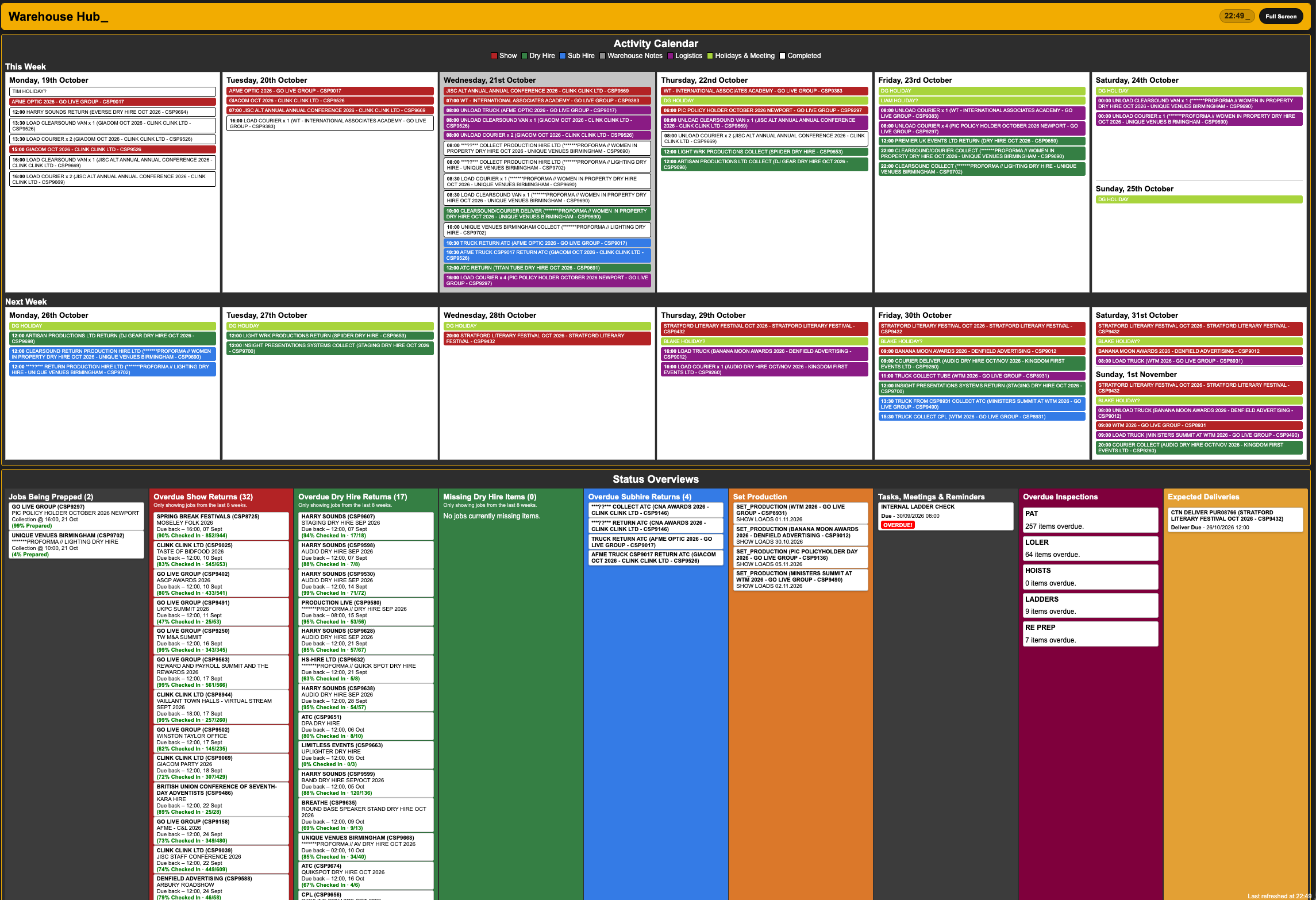
Warehouse Hub combines a rolling 14-day activity planner with configurable status panels. It is designed for a large screen, with periodic refreshes so the team can review the schedule and outstanding work together.
What It Does
Shows a two-week activity planner using the configured activity types, user and display mappings
Jobs Being Prepped shows eligible jobs with preparation percentages and a Ready to Book Out badge when preparation is complete
Overdue Show Returns covers Show or Wet Hire jobs; Overdue Dry Hire Returns covers Dry Hire jobs
Missing Dry Hire Items identifies applicable Dry Hire Opportunities whose subjects include outstanding items
Overdue Subhires and Set Production use their selected Current activity types
Tasks, Meetings & Reminders supports multiple selected activity types and highlights overdue work
Overdue Inspections shows the configured inspection tests and uses the shared overdue-inspection list produced by Check-In Hub; its cards open the relevant Current inspection list
Expected Deliveries uses the selected delivery activity type and looks up to 31 days ahead
Allows panels to be hidden and the view to run full screen, with configured mirror access available for warehouse displays
How To Use It
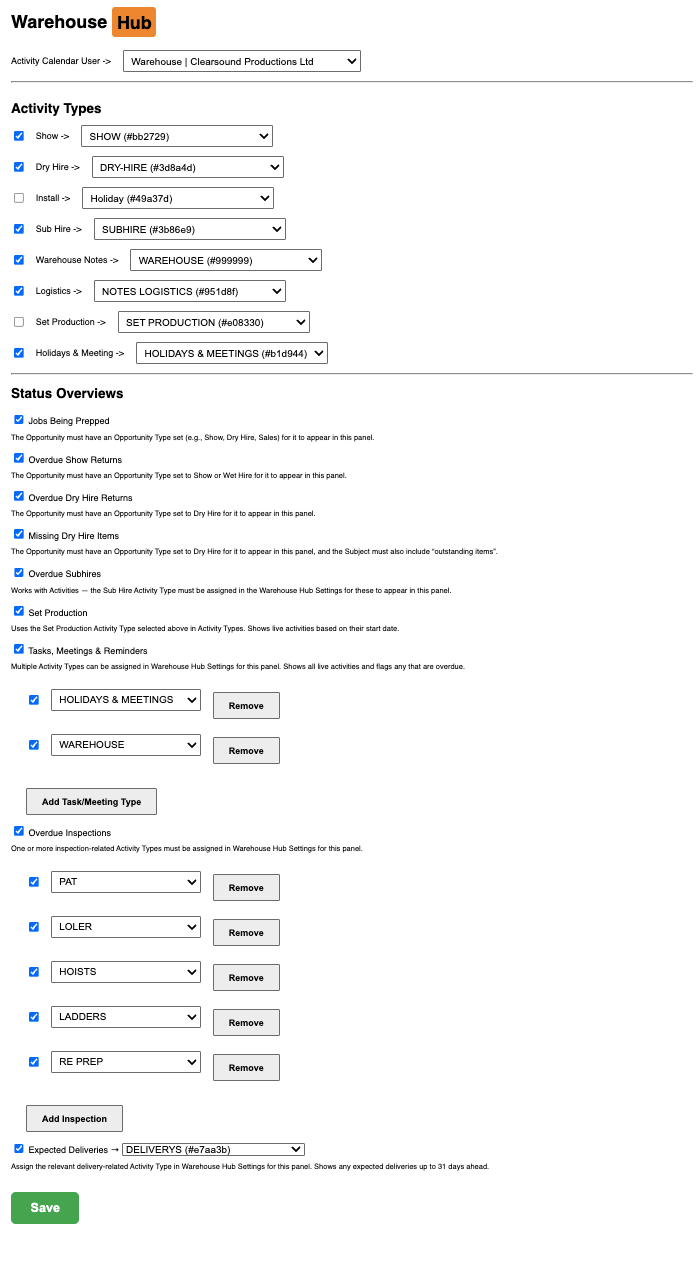
Open Warehouse Hub Settings and select the Activity Calendar user and the activity types for your team’s planner.
Configure the Status Overview panels you want to display. Link Subhire, Set Production, task and delivery panels to the appropriate activity types.
Select the inspection tests for Overdue Inspections and ensure the shared Check-In Hub inspection list has been refreshed.
Use consistent Opportunity Types so prep and return panels can identify the relevant Show, Wet Hire and Dry Hire jobs.
Save the settings and open Warehouse Hub from the main Hub menu.
Select Full Screen on the warehouse display and review the planner and enabled panels.
Open a job, task or inspection card for the underlying Current record when action is required. Review the refresh status if information has recently changed.
💡 Why it’s useful:
A common warehouse screen makes scheduled work and unresolved returns easier to see at a glance. Configurable panels keep the display focused on the work the team actually manages.