Refresh Services Hub_
Realign selected service timings, chargeable days, prices and allocated resource costs after job details change.
Refresh Services Hub reads the Opportunity’s service lines and schedule. You choose the shift window and pricing treatment before starting. A separate Refresh Service Costs review compares allocated resource day costs without requiring a full service timing refresh.
What It Does
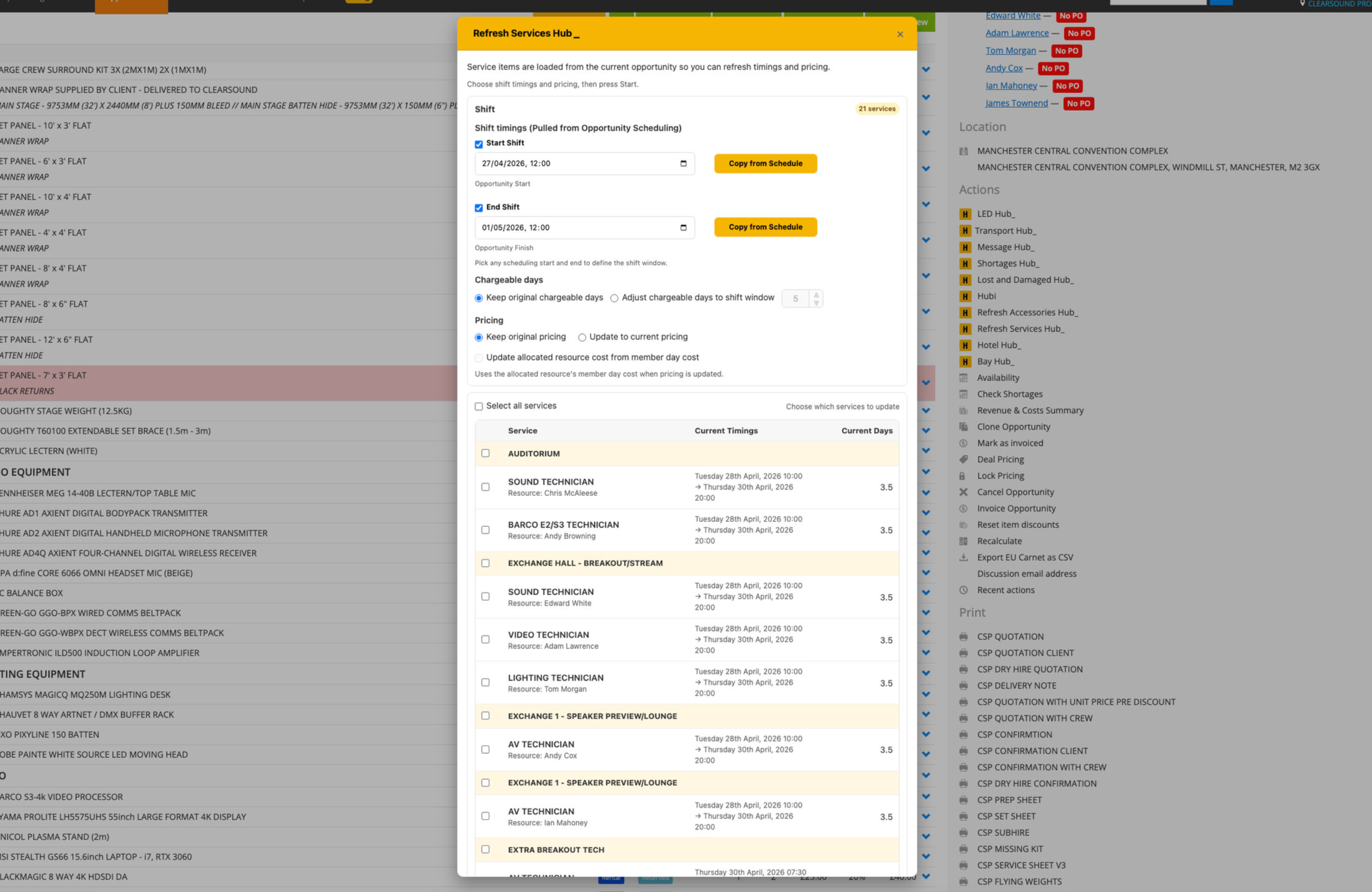
Loads service lines in their groups and shows the current timings and chargeable days
Uses Opportunity, Prep, Load, Delivery, Setup, Show, Takedown, Collection, Unload and De-Prep schedule points where available
Sets Start Shift and End Shift independently from schedule values or manual dates and times
Keeps original chargeable days or adjusts them to the shift window, with an editable day value
Keeps original pricing or updates to the current catalogue price for the service’s day, hour, distance or flat rate
Can update allocated resource costs from member day costs when pricing is refreshed
Refresh Service Costs shows Service, Crew Member, Qty/Days, Current Day Cost and New Day Cost, highlighting differences and updating only selected rows
Offers a crew-cost check before creating a Purchase Order from selected allocated crew costs, with options to refresh costs, continue or cancel
How To Use It
Open the Opportunity and launch Refresh Services Hub from the Hub actions.
Choose the Start Shift and End Shift values. Use Copy from Schedule to choose available schedule points, or enter the required dates and times.
Choose Keep original chargeable days or Adjust chargeable days to shift window and check the resulting value.
Choose Keep original pricing or Update to current pricing. Select the member day-cost option if those allocated costs should also be refreshed.
Select the services or groups to update, then select Start. Review the progress and results.
For costs only, open Refresh Service Costs, compare the current and new day costs, select the relevant rows and select Refresh costs.
If the crew PO prompt appears, choose Refresh Service Costs when the costs need checking before the PO is created. Check the updated grid before continuing.
💡 Why it’s useful:
The Hub reduces repeated edits after schedule changes while keeping the timing, day and pricing choices visible. A separate cost comparison helps the team catch outdated crew costs before creating supplier paperwork.