Availability Hub_
Check availability and shortages from the Opportunity’s item list without leaving the job.
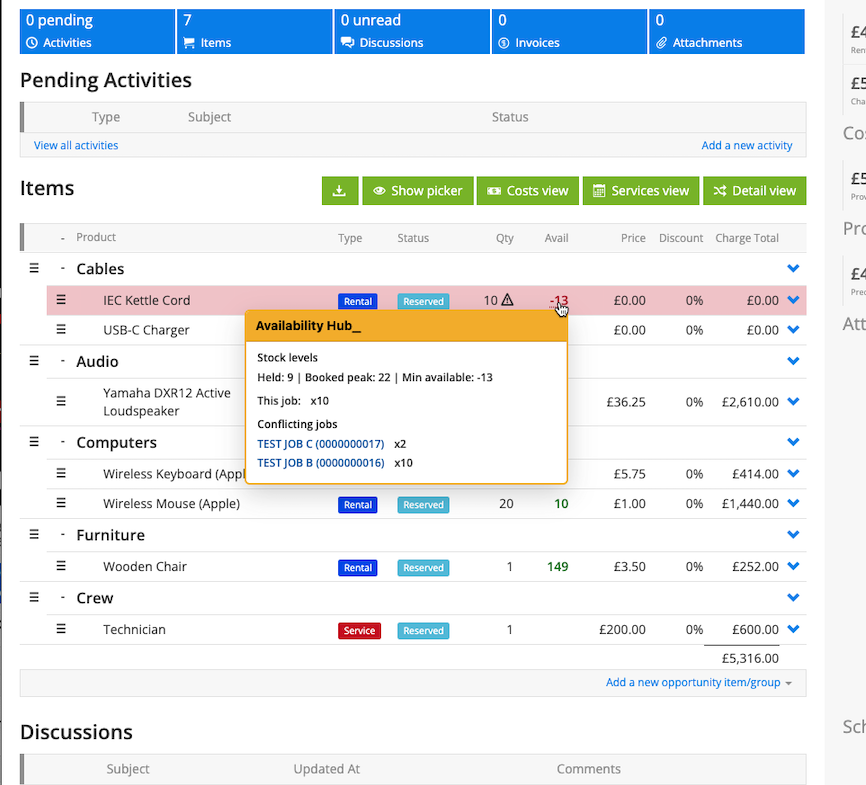
Availability Hub adds an Avail column beside Quantity. Availability is loaded on demand by default, with an optional automatic-load setting and a separate option to show the column in Detail View.
What It Does
Shows availability across the Opportunity’s booking window using the relevant store context
Loads or refreshes the figures when you select the Avail header or its refresh control
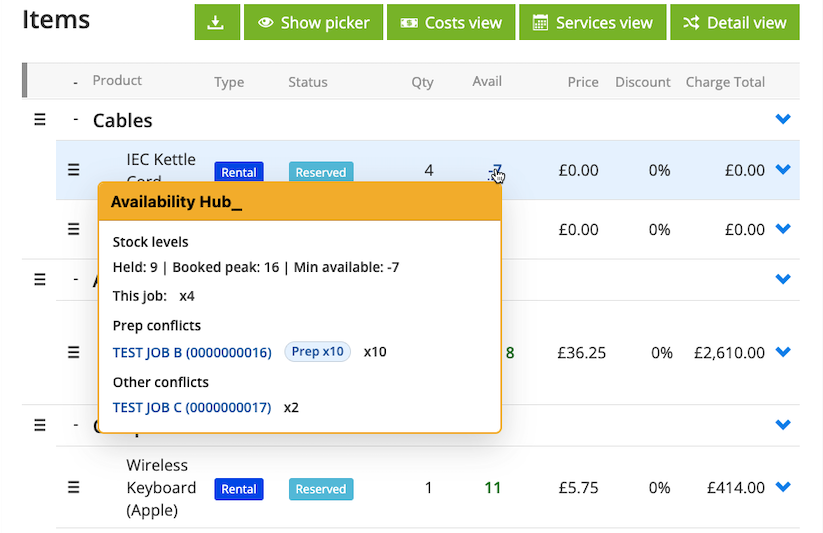
Shows available quantities and shortages, with hover details for conflicting bookings, quantities and prep information
Opens the product bookings view when an availability number is selected
Distinguishes shortages explained by sufficient overlapping Prep / De-Prep quantities from unresolved shortages
Requires the prep coverage to resolve the relevant negative periods, rather than assuming any prep overlap clears the shortage
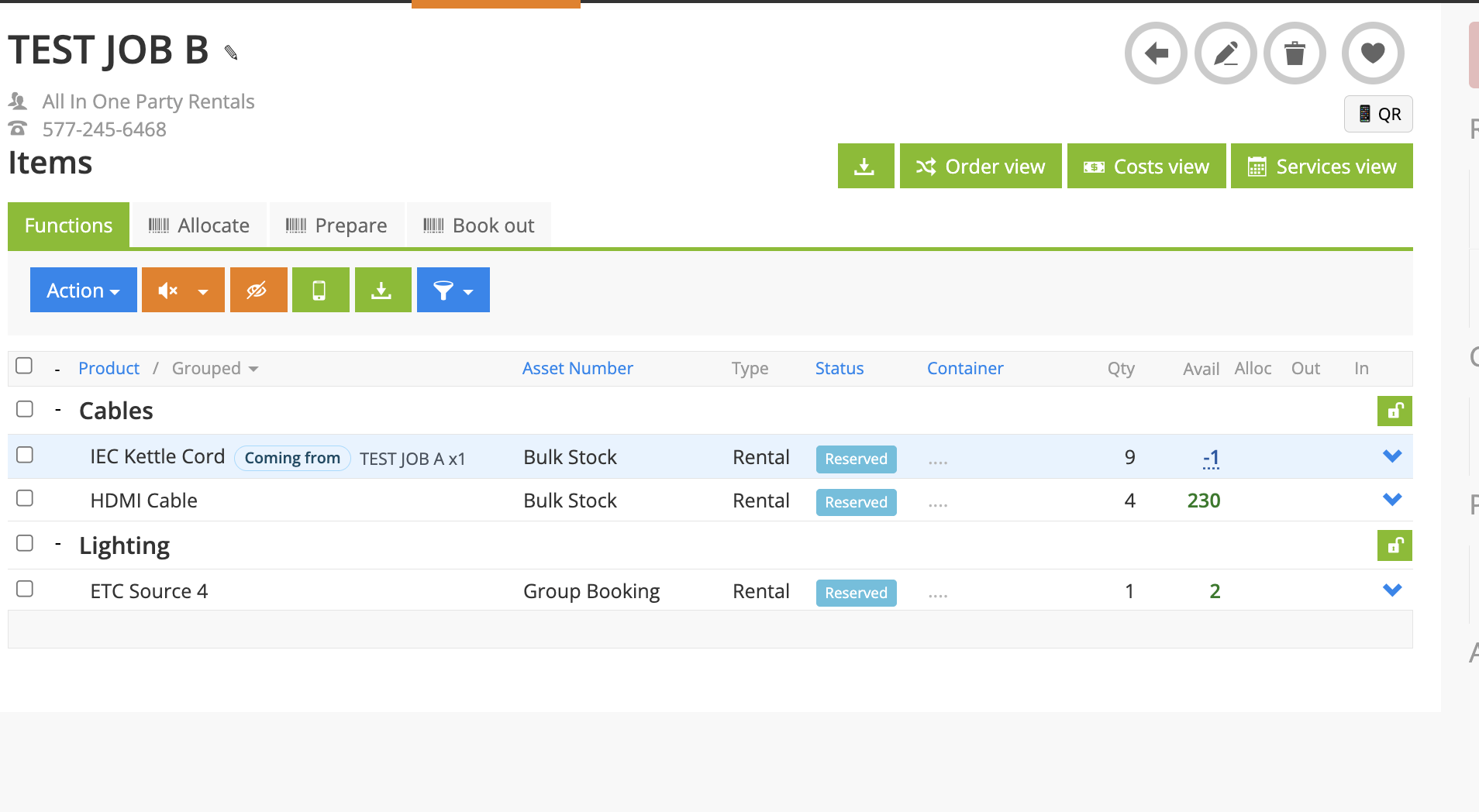
Includes eligible Planned Transfer coverage and retains a visible remaining shortage when coverage is only partial
Can add Avail after Qty in Detail View when Show Availability Hub in Detail view is enabled
How To Use It
Enable Availability Hub in Hub Settings. Enable the separate Detail view option if the warehouse needs the same column there.
Open the Opportunity in Order View and select Avail or its load control to request the figures.
If automatic loading is configured, allow the figures to finish loading; use the refresh control after relevant changes.
Hover over a shortage to review the conflicting jobs, quantities, prep information and available stock context.
Select the availability number to open the full bookings view when you need to inspect the date periods.
Review blue prep-covered rows and any Planned Transfer coverage alongside the actual job dates. Resolve any remaining shortage before relying on the equipment.
💡 Why it’s useful:
Availability Hub keeps the number and the reason for a shortage close to the item being planned. On-demand loading avoids unnecessary work, while period-specific prep and transfer checks help explain whether a conflict remains.