Hotel Hub_
Hotel Hub helps you manage crew accommodation directly from your Opportunity page. It shows a toggle “H” next to each resource, coloured green if a hotel is required and red if not — so you can see hotel needs at a glance. You can choose hotels, add booking references, and set check-in and check-out dates for each crew member and it can even push these details straight to TeamTrack.
How it works:
Every crew resource on an Opportunity has an “H” toggle — switch it on for those needing a hotel stay.
Once toggled, the system keeps track of who needs a hotel and shows them in the Hotel Hub view.
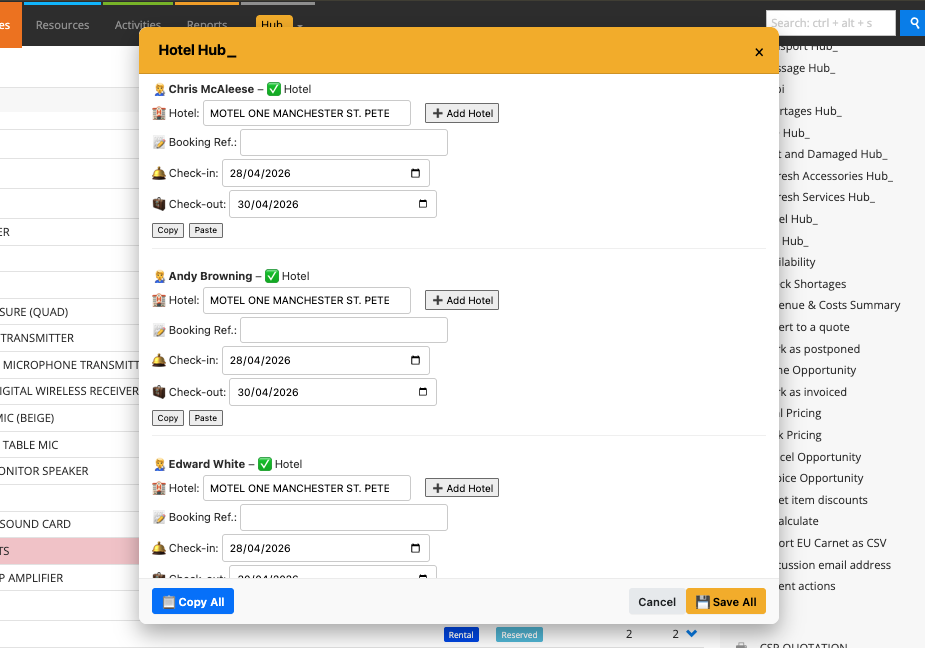
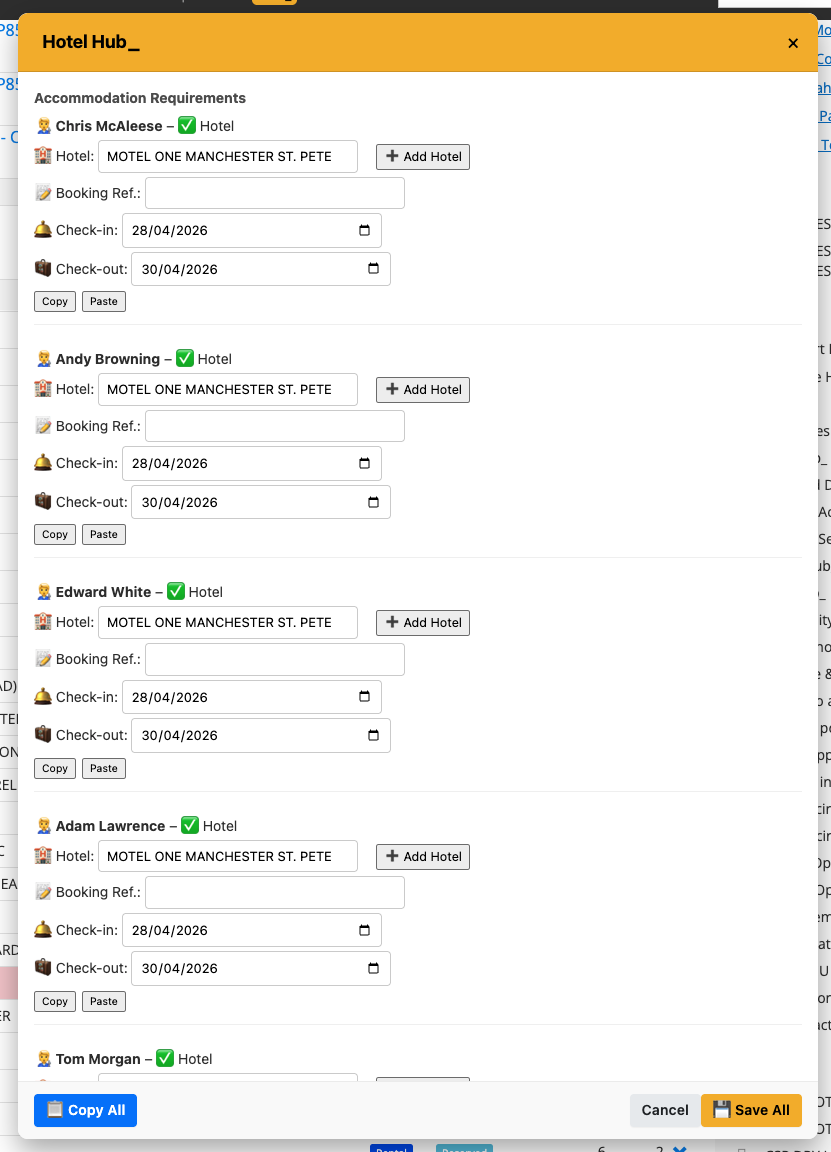
The popup lets you assign hotel details, add references, and pick check-in/out dates for each person.
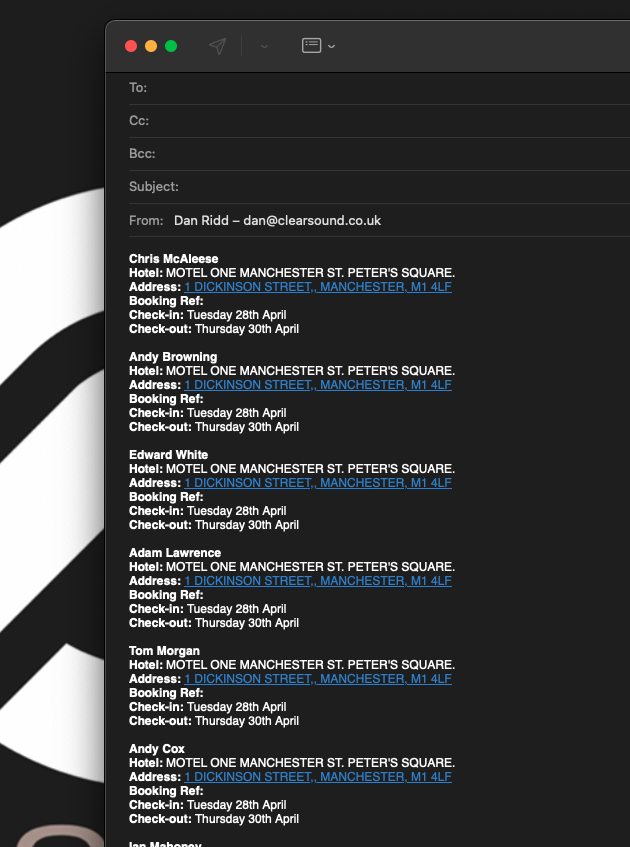
When ready, your updates can be saved straight back to Current RMS, pushed to TeamTrack, or copied for easy sharing.
To use it:
Open your Opportunity in Current RMS.
Toggle the “H” for each crew member who needs a hotel.
Click Hotel Hub under Actions.
Fill in hotel names, booking references, and dates in the popup.
Click Save All to update RMS, push to TeamTrack, or Copy All to share.
💡 Why it’s useful:
Hotel Hub keeps your crew accommodation organised in one place, no more scattered notes or missed hotel bookings.
🎥 For a walkthrough, watch this video: