Stock Check Hub_
Adds a Check Containers action to the Stock Check page so you can quickly confirm container contents in bulk.
How it works:
Appears on Stock Check pages under Actions as Check Containers.
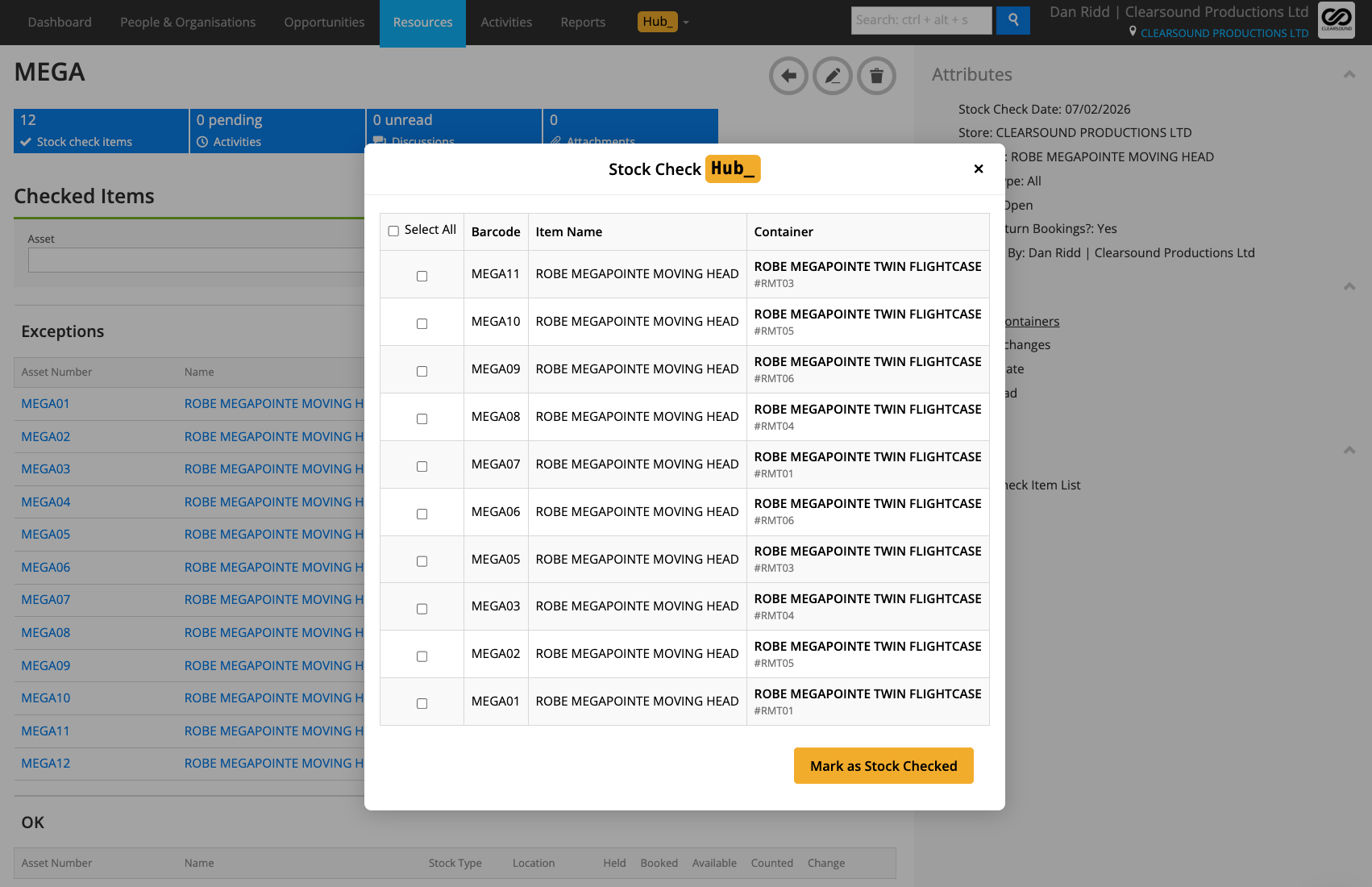
Opens a Hub popup listing items inside containers where Quantity Counted ≠ Quantity Held.
Shows Barcode · Item Name · Container (name + asset number).
Includes Select All and per-row checkboxes.
Clicking Mark as Stock Checked updates selected rows so Quantity Counted = Quantity Held.
To use it:
Go to a Stock Check in Current RMS.
In the Actions list, click Check Containers.
Review the table and tick items (or Select All).
Click Mark as Stock Checked to post the updates.
Close the popup when done.
💡 Why it’s useful:
Saves time, you don’t need to open every container to stock check each item one by one. Instead, you can batch-mark them in seconds.