Backup Hub_
Backup Hub keeps your jobs and kit lists safe by backing up your opportunities into a single JSON file saved straight to your Downloads folder. It shows real-time progress updates, logs each backup with a timestamp and job count, and even includes an offline viewer so you can browse jobs and scan barcodes without internet access. You can scan and record barcodes offline, then push them back to your live opportunity when you’re back online.
How it works:
Backs up either your current live opportunities or all opportunities into a single downloadable JSON file.
Stores backups in your Downloads folder so you always have a copy you control.
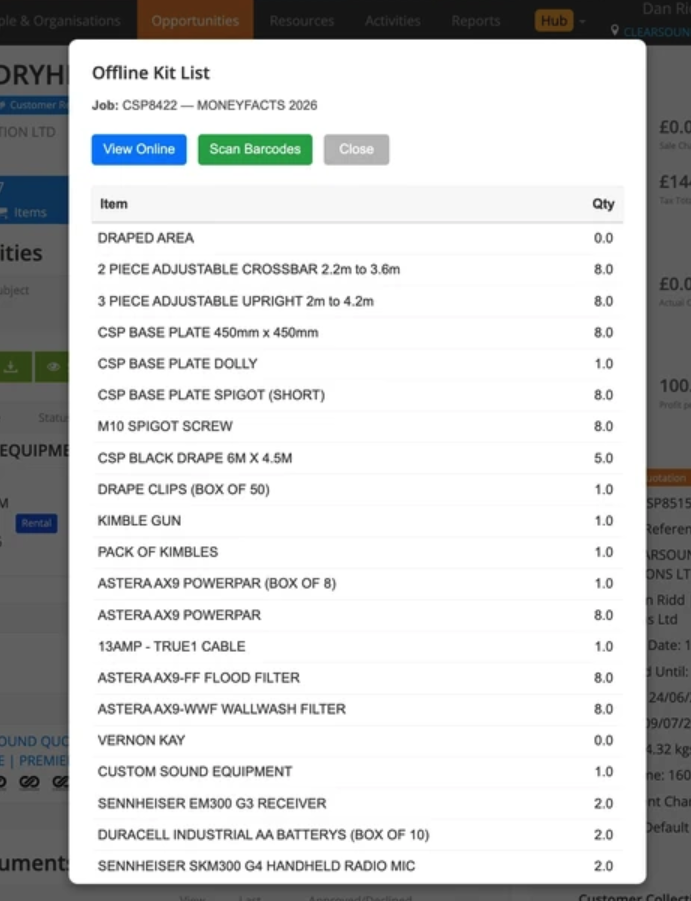
Lets you view backups offline, search kit lists, and scan barcodes without needing an internet connection.
Tracks and logs every backup run, so you know when it last happened and how many jobs were included.
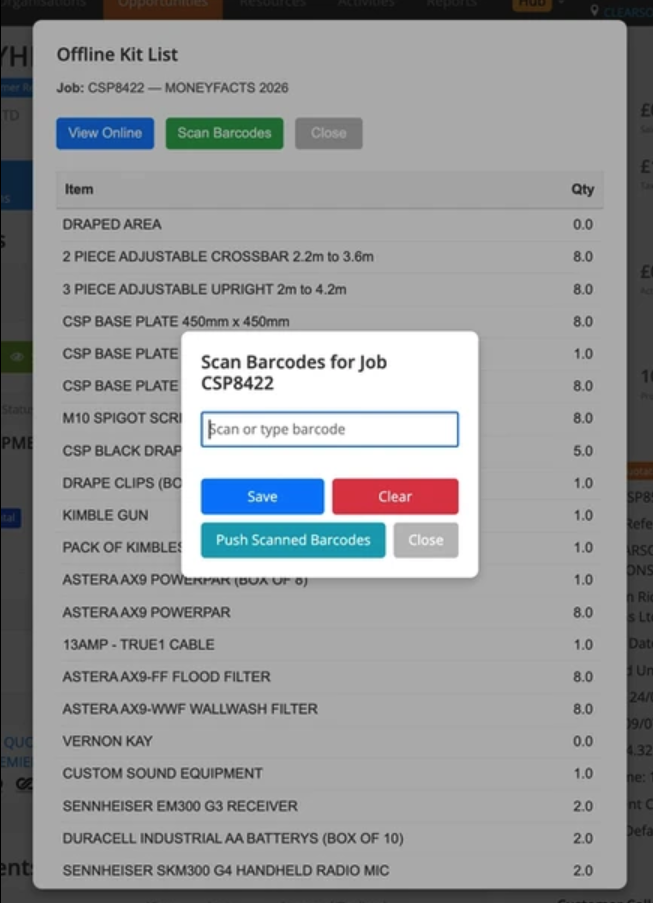
Any barcodes you scan offline can be pushed back to your live Opportunity once you’re back online using Backup Hub in the main menu.
The Offline Backup Hub is only for emergencies — when Current RMS or your internet is completely down.
To use it:
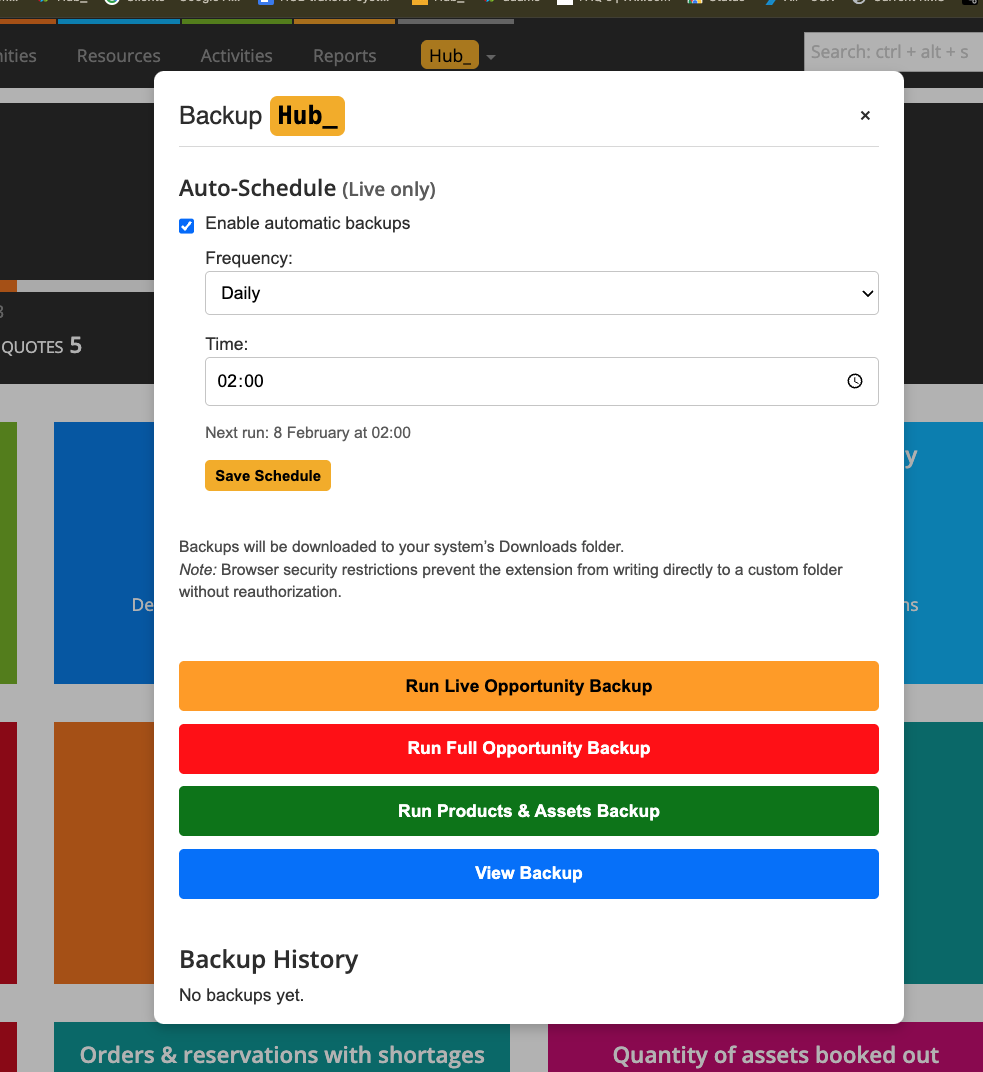
Open Backup Hub in the Hub menu (or Offline Backup Hub in Settings).
Pick Live Backup, Full Backup, or set up an auto-schedule if you want backups to run automatically.
Follow the progress updates and locate your JSON backup file in your Downloads folder.
Use View Backup to browse and scan kit lists offline.
In the offline viewer, click Scan Barcodes to capture kit barcodes while offline.
When you’re back online, open the Opportunity and use Backup Hub in the main menu to push your scans back into Current RMS.
💡 Why it’s useful:
Backup Hub gives you peace of mind — you’re always covered if you need to check or restore jobs offline, and you can keep scanning kit even if your internet drops.