Version Hub_
Version Hub_ lets you save named versions of an Opportunity so you can return to previous builds, test changes safely, and move versions between jobs without rebuilding everything by hand.
It’s designed to protect complex opportunity structures, making it easy to save milestones, compare setups, and restore an exact item layout when plans change.
How it works
• Opens from the Hub menu inside an Opportunity.
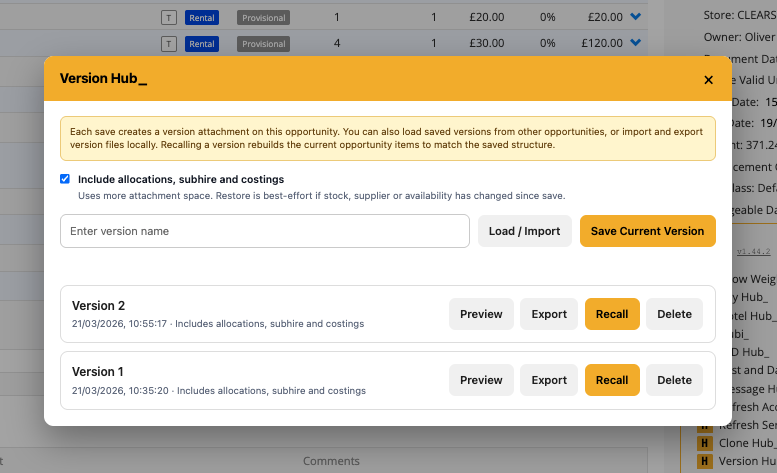
• Save the current Opportunity as a named version.
• Each save creates a version attachment on the Opportunity.
• Recall a version to rebuild the current Opportunity items back to that saved structure.
• Saves item order, grouping, nesting, quantities, pricing, discounts, chargeable days, descriptions, and other supported item details.
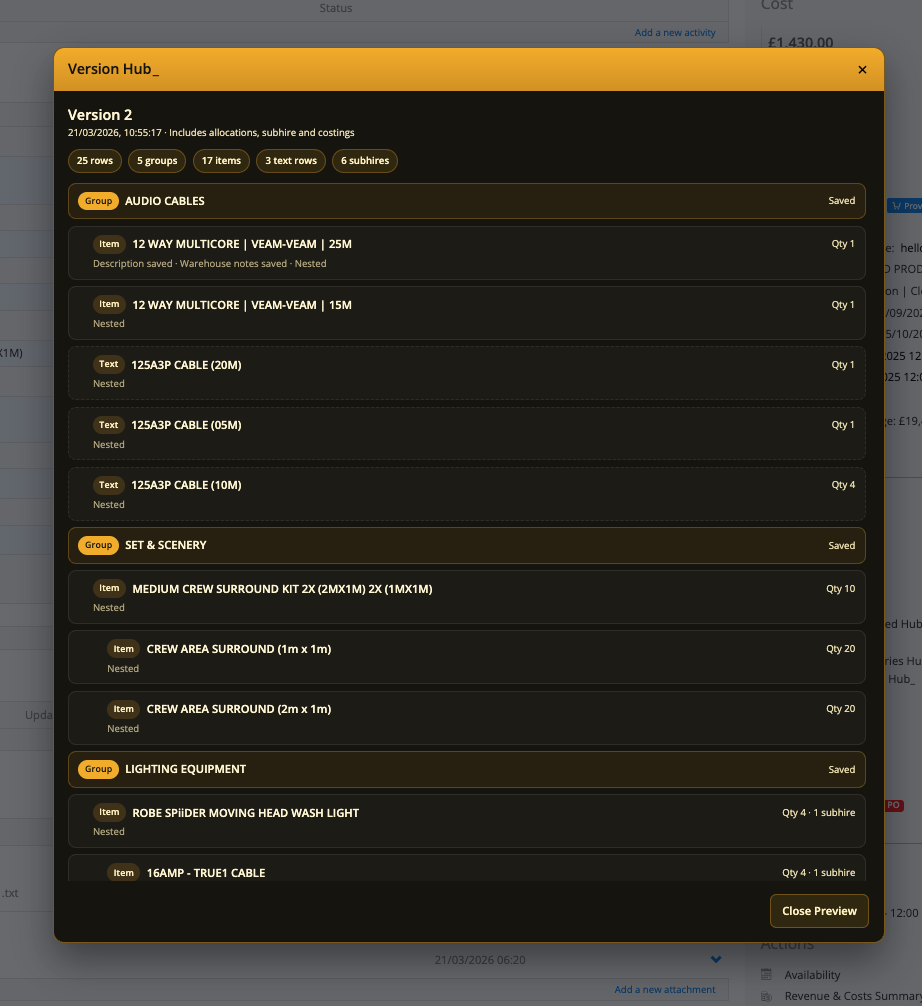
• Includes a Preview button so you can inspect the saved group and item list before recalling it.
• Optional checkbox to include allocations, subhire and costings in the saved version.
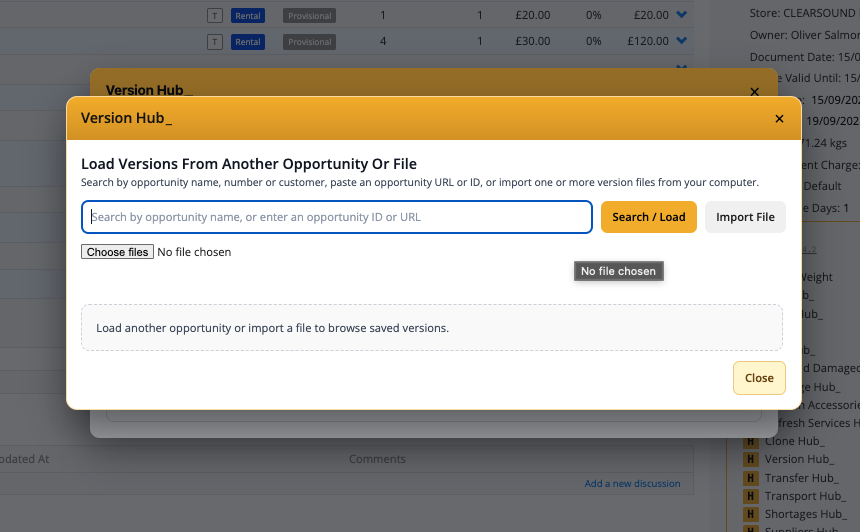
• Can load versions from other Opportunities.
• Can export a version to a file and import a version from a file.
• Recalling a version rebuilds the Opportunity to match the saved version as closely as possible.
To use it
• Open an Opportunity.
• Open Version Hub_ from the Hub menu.
• Enter a version name and click Save Current Version.
• Use Preview to review the saved structure.
• Click Recall to restore a saved version.
• Use Load / Import to bring in versions from another Opportunity or from a file.
• Use Export if you want to save a version outside Current RMS.
Why it’s useful
Version Hub_ keeps version control inside the job screen. You can save before major changes, restore older builds in seconds, compare different job setups, and move proven item structures between opportunities without manually rebuilding groups, items, and pricing.