User Hub_
User Hub helps assign a clear Job Manager to each Opportunity.
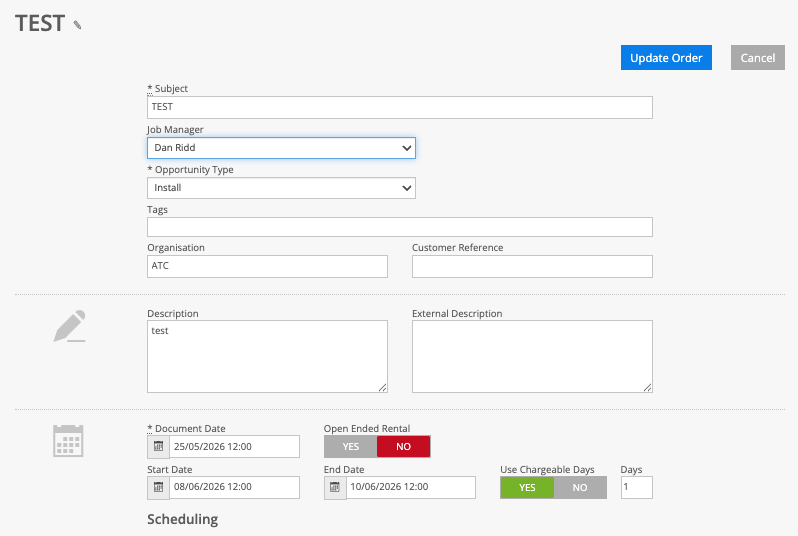
It allows administrators to set up a list of staff names and add a Job Manager dropdown to the Opportunity page. The Job Manager is the person responsible for overseeing the job from booking through to delivery, including install planning, crew bookings, shortages, and handover to the project stage.
How it works
• Adds a Job Manager dropdown to Opportunity pages.
• Places the Job Manager field before Opportunity Type.
• Uses a Current RMS custom field called Job Manager.
• Uses a Current RMS List of Values called Staff Names.
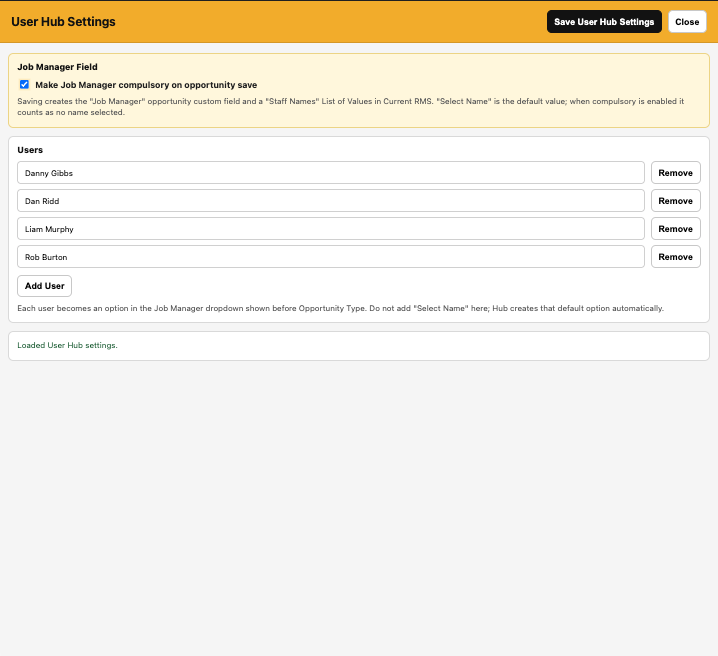
• Allows administrators to manage the available staff names from User Hub Settings.
• Can make Job Manager compulsory before an Opportunity is saved.
• Saves the selected Job Manager against the Opportunity custom field.
• Helps identify who is responsible for overseeing each job.
To use it
• Open Hub Settings.
• Enable User Hub.
• Open User Hub Settings.
• Add the staff names you want available in the Job Manager dropdown.
• Choose whether Job Manager should be compulsory.
• Save your User Hub settings.
• Open an Opportunity.
• Select the relevant Job Manager before saving.
• If Job Manager is compulsory, Hub will prevent saving until one is selected.
💡 Why it’s useful:
User Hub helps make job ownership clear by showing who is responsible for managing the job from booking through to delivery. It reduces confusion, improves accountability, and helps teams quickly see who is overseeing each Opportunity.