Flight Hub_
Keep crew flight requirements and booking details alongside the Opportunity.
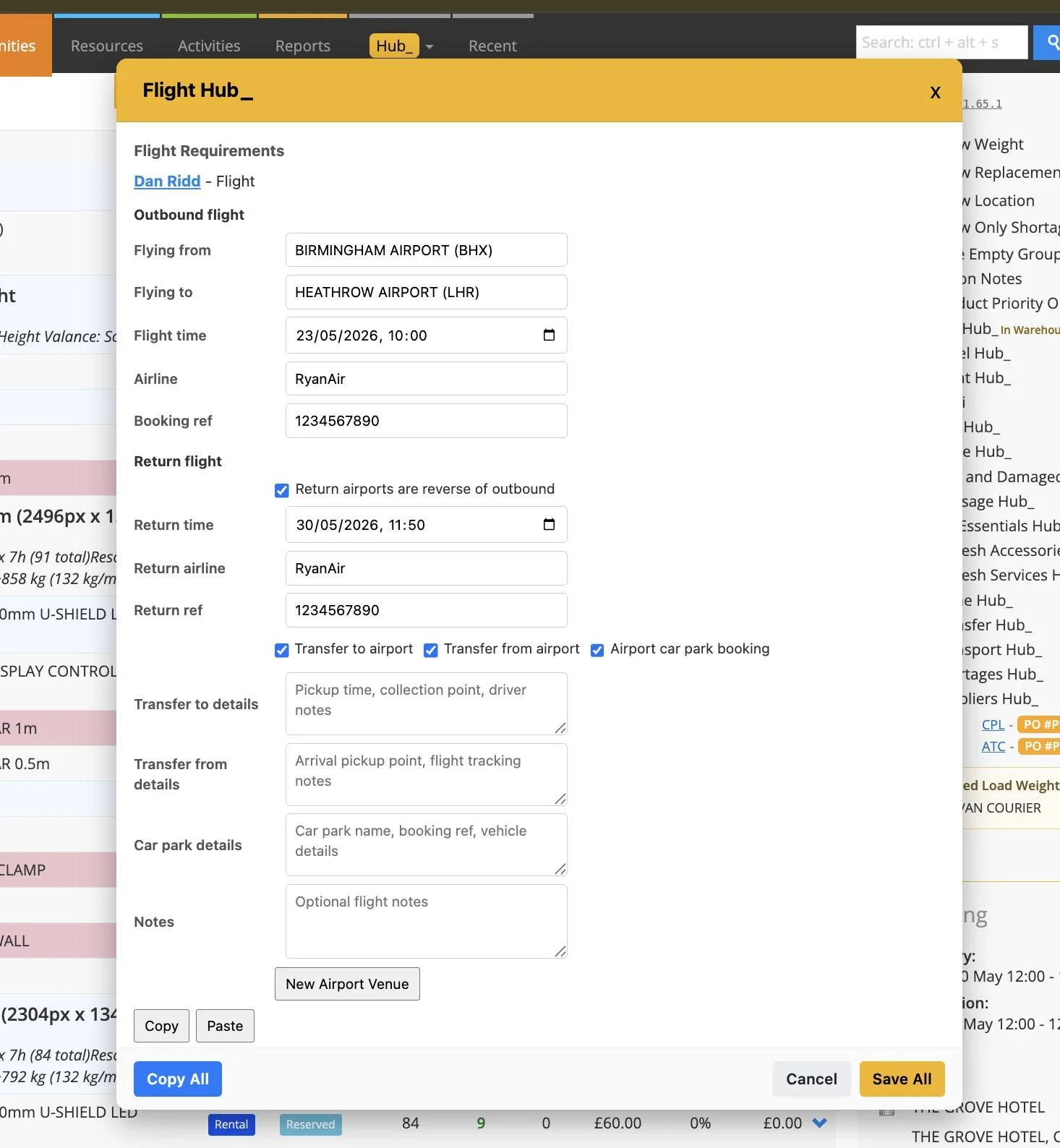
Flight Hub adds an F toggle to eligible crew service resources and a central Flight Requirements window. It records travel arrangements you have made, including outbound and return journeys, transfers and parking, ready for use in job documents.
What It Does
Flags the resources that require flights and brings them together for review
Records outbound departure and arrival airports, departure and arrival times, airline and booking reference
Supports return journeys, including a same-airports option or different return airports
Looks up airport or venue records and includes their available address information in the saved travel text
Records transfer-to-airport, transfer-from-airport and airport car park details when required
Offers Copy, Paste, Paste to All and Copy All to reuse travel details across crew resources
Formats saved flight information for documents and crew paperwork
Respects configured service-name exclusions so unrelated services are left out
How To Use It
Open the Opportunity and switch on F beside each eligible resource that needs flights.
Open Flight Hub from the Hub actions and review the flagged resources.
Enter the outbound airports, departure and arrival times, airline and booking reference. Select the correct airport or venue lookup result.
Enter return details if needed, using the same-airports option where appropriate.
Add transfer or parking information for the resources that need it.
Use Copy and Paste to reuse details, then check each crew member’s dates, route and reference.
Select Save All and allow the updates to finish. Review the saved travel text before issuing crew documents.
💡 Why it’s useful:
A shared flight record keeps travel requirements and confirmed details close to the job. Reusing common journeys saves entry time while individual dates and references remain available for checking.