Dashboard Hub_
Personalise the Current RMS dashboard so every user can arrange information and shortcuts around the way they work.
Dashboard Hub adds drag and drop layouts, adjustable dashboard columns, quick-access shortcuts, API health monitoring and useful sales controls directly to the Current RMS dashboard.
What It Does
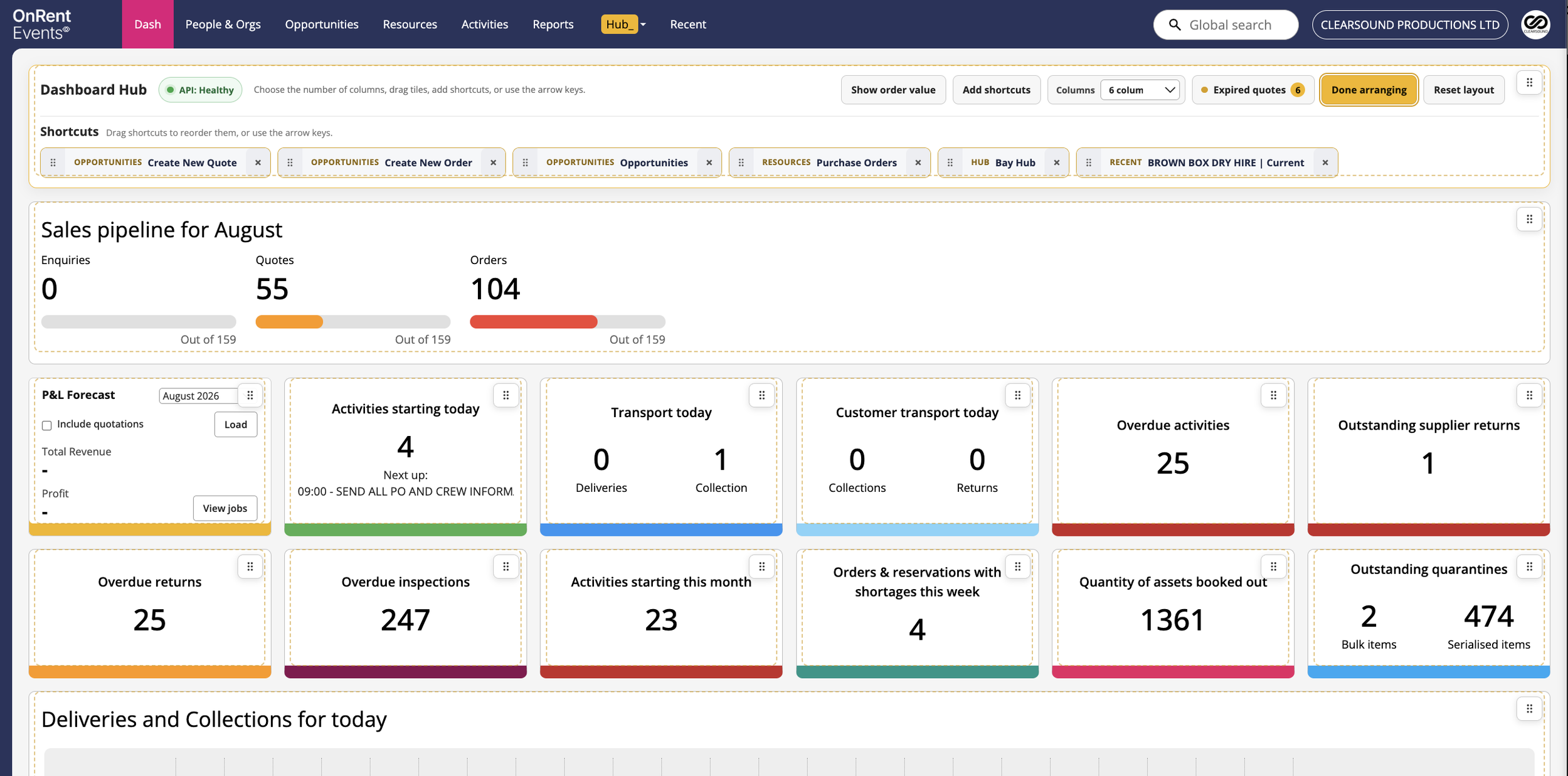
Allows dashboard tiles to be rearranged using drag and drop
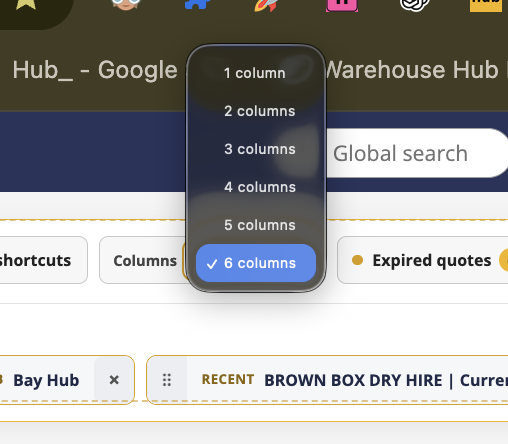
Lets users choose between one and six dashboard columns
Automatically resizes standard tiles to fit the selected number of columns
Keeps larger sections, such as the sales pipeline, full width
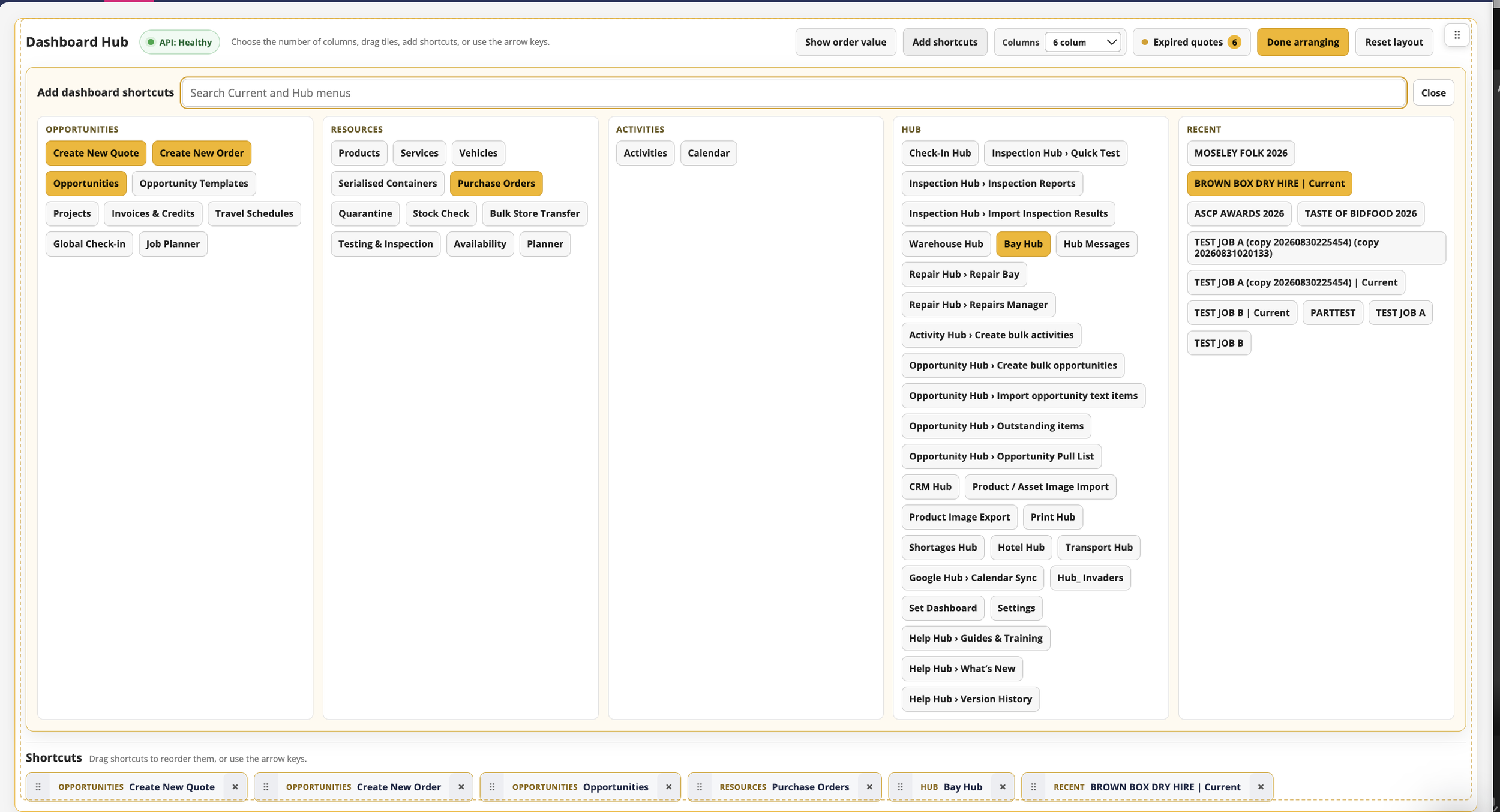
Creates shortcuts from available Current RMS and Hub menu options
Allows shortcuts to be rearranged or removed
Displays the Current RMS API health status
Provides a control for showing or hiding the order value
Places Expired Quotations inside Dashboard Hub
Hides sales controls when the user does not have access to the relevant sales information
Remembers each user’s dashboard preferences
Dashboard Hub is enabled by default. It can be turned on or off under General & Appearance in Hub Settings.
Arrange the Dashboard
Open the Current RMS dashboard.
Select Arrange dashboard.
Use the Columns selector to choose between one and six columns.
Drag dashboard tiles into your preferred order.
Select Done arranging when finished.
Standard dashboard tiles automatically resize to fit the selected number of columns. Full-width sections remain full width.
Add Shortcuts
Select Arrange dashboard.
Select Add shortcuts.
Search or browse the available Current RMS and Hub menu options.
Select the tools you want to add.
Drag the shortcuts into your preferred order.
Remove any shortcuts you no longer need.
Select Done arranging when finished.
Only menu options available to the current user can be added as shortcuts.
Dashboard Controls
Dashboard Hub also provides quick access to:
API Health — shows whether Current RMS API requests are working normally
Show or Hide Order Value — controls whether the sales pipeline displays the order value
Expired Quotations — provides direct access to expired quotation information
Arrange Dashboard — opens the layout, column and shortcut controls
Reset Layout — restores the original tile order and default four-column layout
Important
Dashboard layouts, column choices and shortcuts are personal preferences. Selecting Reset Layout restores the default dashboard arrangement and four column layout without removing Current RMS data.
💡 Why It’s Useful
Different users and teams have different priorities. Dashboard Hub allows each person to organise the dashboard around their role, place important information where it is easiest to see and create shortcuts to the tools they use most often. This reduces unnecessary navigation and makes the Current RMS dashboard faster, clearer and more useful for everyday work.